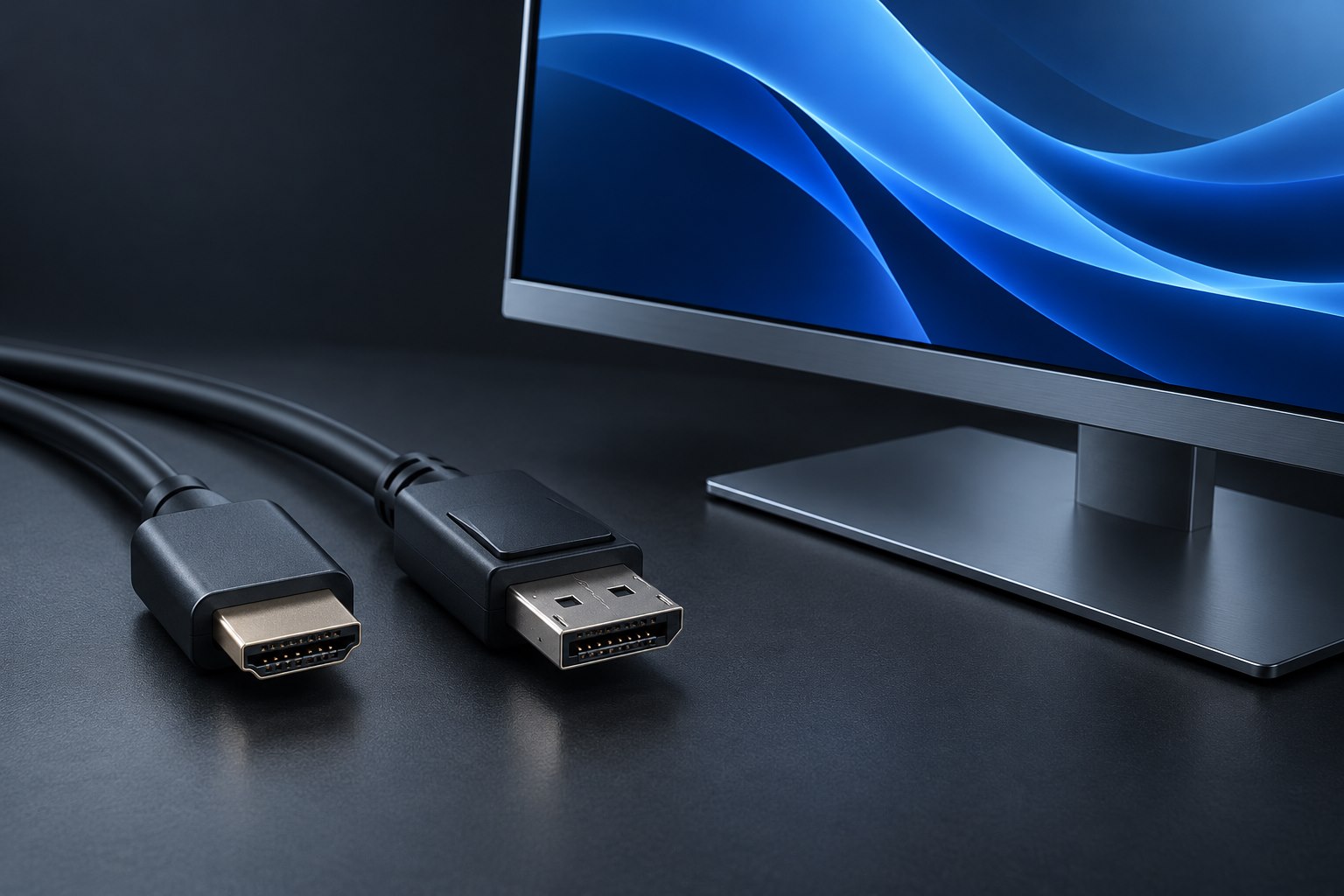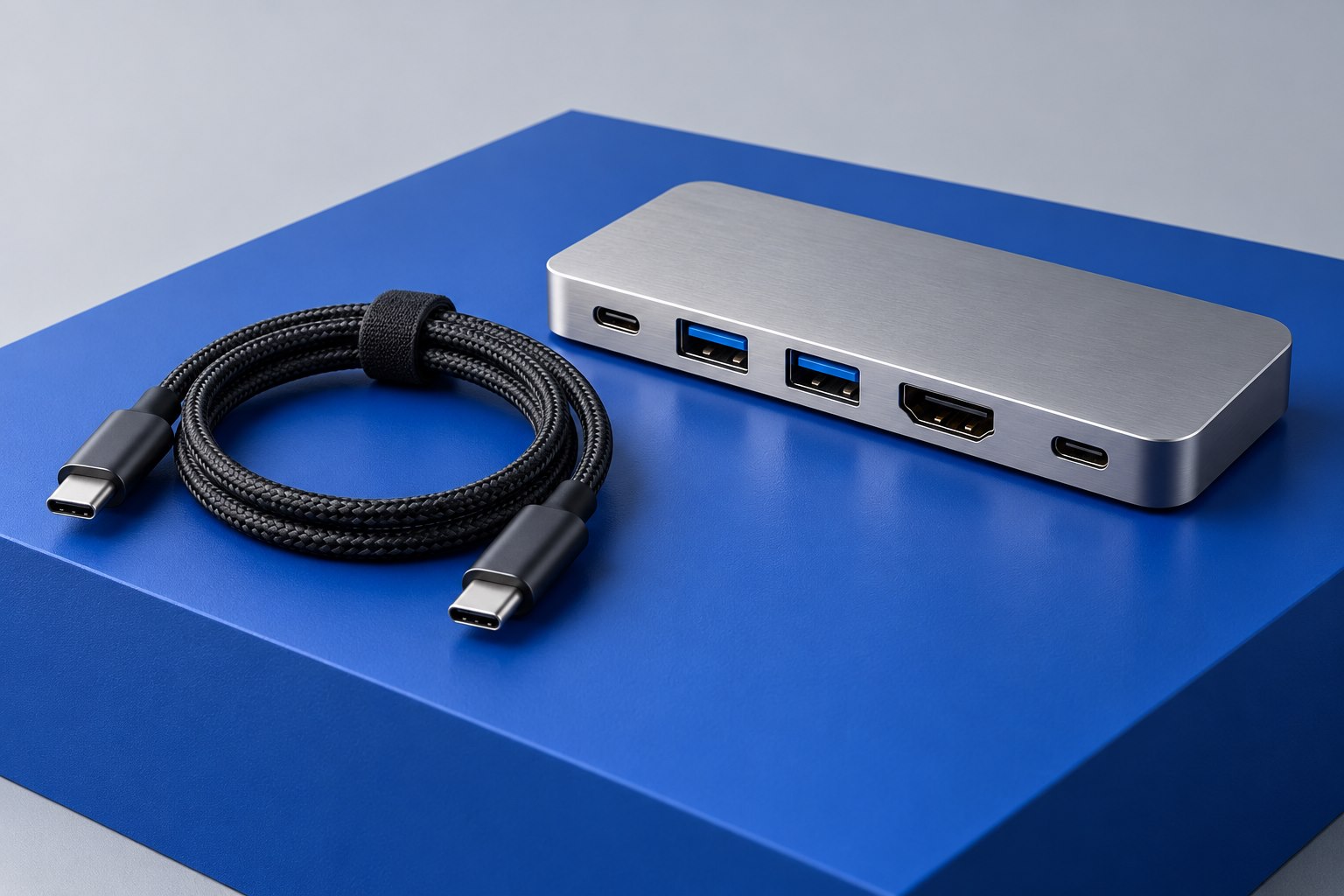
Give each cable a primary assignment
A useful cable purchase begins with a sentence: 'This will charge my laptop at the desk,' or 'This will connect my portable display.' That small decision makes the specification easier to read. A phone charging lead need not deliver the same data performance as a cable for a fast external drive. A display connection requires an appropriate video-capable path in addition to plugs that fit. Spending more without naming the task can still leave the important feature missing.
For a laptop bag, one versatile cable may reduce clutter, but versatility usually costs more and can bring a thicker jacket or shorter practical length. At a permanent desk, separate cables can be simpler: a flexible charging lead near the sofa and a documented high-performance connection behind the monitor. Judge convenience by the actual route and device arrangement, not by the number of features printed on the box.
Check power and data independently
Read both the watt rating and the stated data rate. USB-IF provides combined performance-and-power marks, so a clearly labeled product can answer these questions without decoding vague terms such as premium or professional. If the listing gives only a charging figure, ask for the data specification before buying it for storage or display use. Conversely, a fast data rating does not eliminate the need to verify the charging capacity required by your laptop.
Consider a hypothetical 65-watt laptop and a cable advertised for 60 watts. The two may still establish a lower-power charging connection, but that is a different outcome from supplying the intended workload comfortably. If you choose a higher-rated cable, also verify the charger and the computer: the cable cannot create a charging profile that either endpoint lacks. Treat the connection as a matched set of capabilities.
Buy the length you will actually route
Measure from port to port along the planned route, including a relaxed bend behind each connector. A cable stretched diagonally across a desk can pull on a laptop socket every time the computer moves. Too much spare length can become a coil under a warm dock or catch on an armrest. The useful length is the routed distance plus modest slack, rather than the straight-line gap between the devices.
For demanding data or video connections, verify the exact length being sold. A manufacturer may offer different capabilities within a family of similar-looking cables. Do not assume a longer variant performs identically merely because the product photographs match. Detachable host cables are worth labeling at both ends so a charging-only replacement does not quietly enter a working display setup.
Keep packaging information, then verify the result
Record the cable model, rating, and purchase source before discarding the packaging. A small removable tag can identify 'monitor' or 'laptop power' without covering the connector or creating a stiff bend. Visually inspect the plugs and strain relief after unpacking. Return a cable with bent metal, a loose housing, or intermittent operation instead of trying to compensate with tape or a carefully balanced position.
Test the intended task using a direct connection first. For a display, select the desired refresh rate; for a drive, confirm a large transfer completes; for charging, check the operating system reports an adequate power source during normal work. A successful phone charge proves only that power reached that phone. It does not validate the cable for every other USB-C job in your collection.
Sources & further detail
These references support the technical context. Examples and selection advice are editorial explanations; verify the documentation for your exact equipment and software.
A detail we should revisit? Send the guide URL and the relevant documentation to SmithKent5791@outlook.com.
Read the editorial policy