Follow the power from the wall
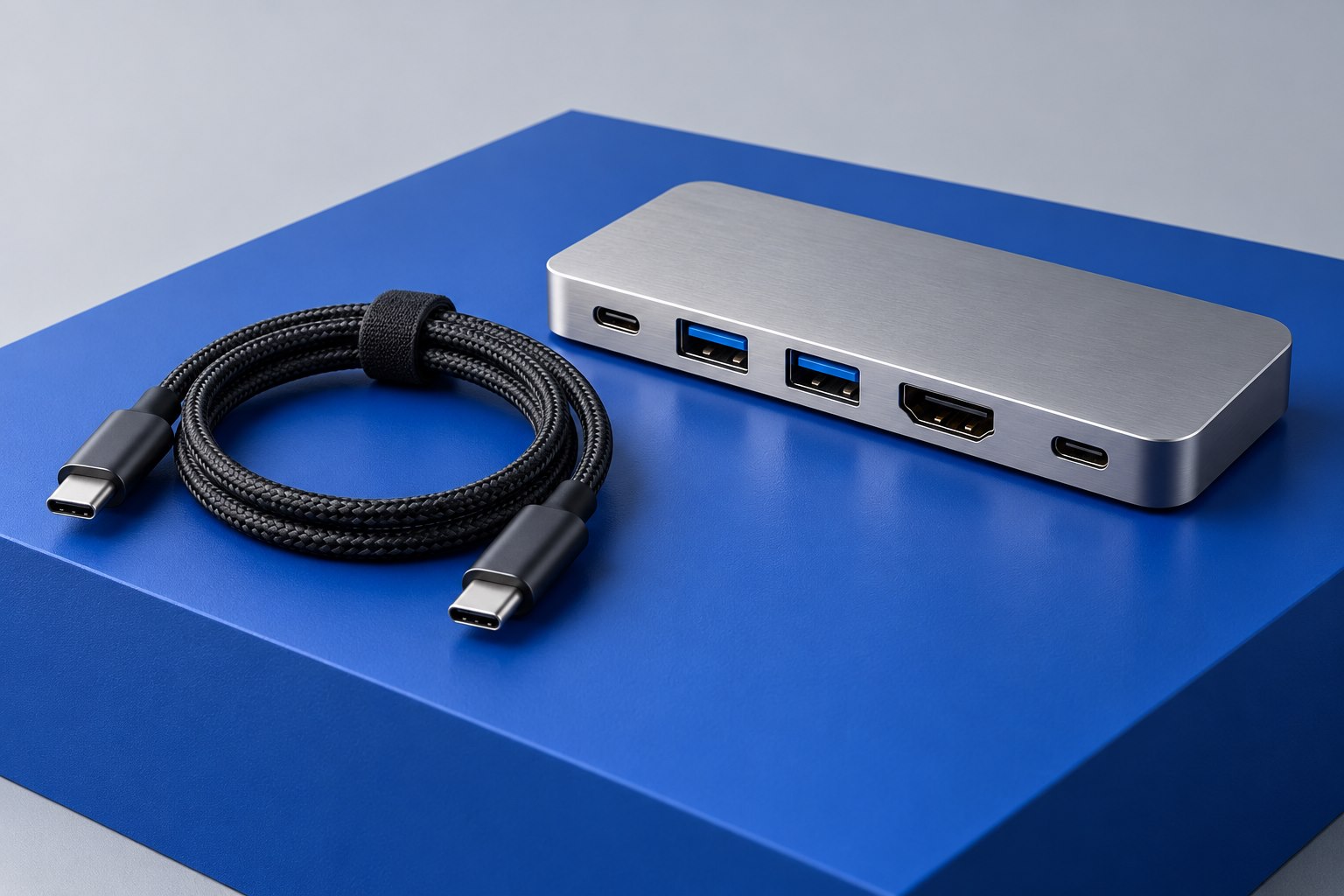
A dock might advertise a large power-supply figure while delivering a smaller amount to the connected laptop. The supply also runs the dock and its attached accessories. A compact hub with charging passthrough may accept a certain input but reserve some of it internally. Read the specification line that explicitly states host charging or power delivered to the computer; that is the number relevant to replacing your laptop's normal charger.
Imagine a hypothetical hub that accepts 100 watts and specifies 85 watts to its host. Pairing it with a 100-watt adapter does not turn the host output into 100 watts. Pairing it with a smaller adapter may reduce the available host power further. Use the manufacturer's documented behavior for the actual combination rather than subtracting an assumed fixed allowance from every hub on the market.
Compare against the workload, not just idle charging
A laptop can show a charging symbol while gaining charge very slowly, or while losing charge during a demanding task. The symbol alone does not establish that the external source covers the current workload. Compare the dock's host output with the computer manufacturer's recommended adapter, then check any guidance about lower-power sources. Apple, for example, documents that compatible USB-C Macs can use different adapter wattages, while charging performance depends on the source.
For a computer used mainly for documents, a lower-output dock might still be workable if its manufacturer supports the arrangement. For sustained rendering or gaming, the same dock could be an inconvenient daily compromise. Keep the original power adapter available when testing. The goal is to understand the behavior before reorganizing the desk around a single cable and discovering that the battery falls throughout the afternoon.
Account for the cable and port assignment
The host cable must support the charging level being requested. A replacement cable chosen only for its data speed can introduce a power limit, while a charging cable chosen only for its watt rating can remove display capability. Use the dock's supplied host cable for the initial test and document any replacement's power and data specifications. Both matter when the same link carries the desktop setup.
Power-output ports on the dock may also differ. A front USB-C socket intended to charge a phone is not necessarily the host connection. Read the port labels and the manual's diagram before swapping cables. If the dock has a detachable supply, use the approved supply for that model; a connector that happens to fit is insufficient evidence of electrical compatibility.
Perform a realistic charging check
Test with the laptop battery partly discharged and the normal accessories attached. Open the work you actually do and watch the battery trend over a useful interval. Record whether the system reports slow charging or insufficient power. Repeat once with the original adapter if you need a comparison. This practical check is more informative than a brief glance immediately after plugging in an otherwise idle computer.
If the dock cannot meet the workload, the cleanest remedy may be separate laptop power while keeping the dock for data and displays, provided the computer supports that arrangement. Another option is a dock with a documented higher host output. Choose based on the exact limitation you observed. Replacing the wall adapter alone will not raise a host-output limit built into the dock itself.
Sources & further detail
These references support the technical context. Examples and selection advice are editorial explanations; verify the documentation for your exact equipment and software.
A detail we should revisit? Send the guide URL and the relevant documentation to SmithKent5791@outlook.com.
Read the editorial policy