Physical size and pixel count answer different questions
The diagonal screen measurement tells you how large the display is physically. Resolution tells you how many pixels form the image. Put the same resolution on a larger screen and each pixel occupies more physical space. Increase resolution at the same size and the image can show finer detail, but interface elements may need scaling to remain comfortably readable. A larger screen does not automatically provide more useful workspace if you enlarge everything to the same apparent size. Decide how many windows you need visible and how far the display will sit from your normal viewing position.
Think in readable windows
List the work you want to see together: a document and reference page, a wide spreadsheet, or a timeline with tool panels. Compare those arrangements at a text size you would actually use. A high-resolution display may provide sharper text when scaled while showing roughly the same number of windows as a lower-resolution option. That can still be valuable, but it is a different benefit from extra workspace. If possible, view a similar display with your own applications. Product photographs showing tiny text across a huge desktop do not reveal whether that text is practical to read throughout a working session.
For a fair shop or home comparison, open the same document and set the text to a similar readable physical size on both screens. Then count what remains visible around it. This separates improved sharpness from increased working area. Without that step, the display with smaller default text can appear more spacious simply because it asks you to read smaller letters.
Check the desk before increasing the diagonal
A deeper desk can accommodate a larger display more easily than a shallow shelf. Measure the stand footprint and where the panel will sit, not only the screen width. A wide stand may reduce the space available for keyboard movement or documents. Height adjustment matters because the correct screen position is not determined by the factory stand's default height. If considering an arm, check the monitor's weight without its stand, supported mount, and the desk attachment. A large display that fits the room on paper can still feel crowded if it must sit too close or extend past the usable desk edges.
Use native resolution and deliberate scaling
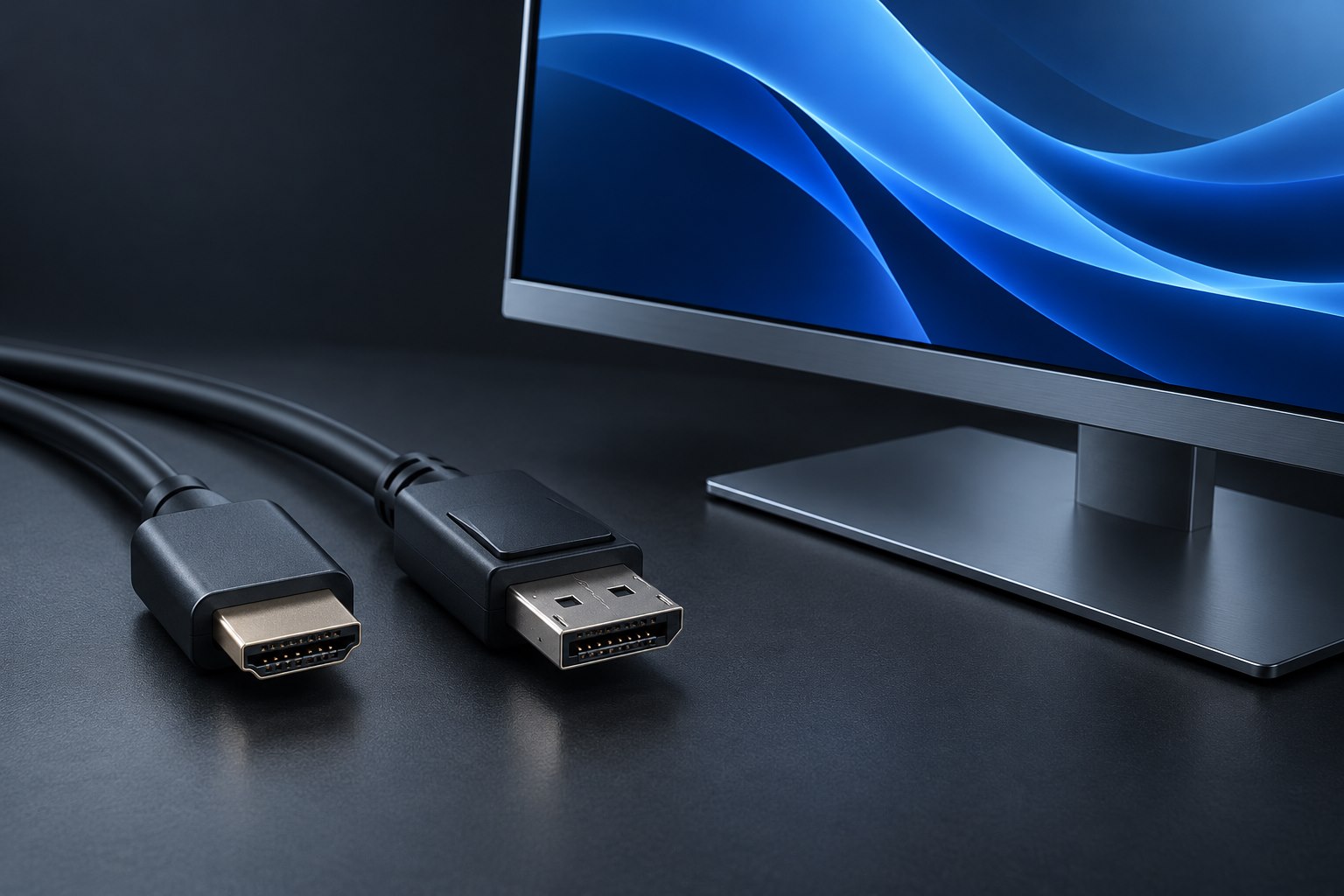
Operating systems commonly recommend the panel's native resolution and offer scaling controls for interface size. Lowering resolution can make items larger but may soften the image compared with using appropriate scaling. Older applications can respond differently to scaling, especially across monitors with different pixel densities. Test your critical software before making a final choice. Check the host computer and connection path for the desired resolution and refresh rate together. If a preferred mode is absent, the limitation may be the cable, adapter, port, or graphics capability rather than the monitor's panel specification.
On a mixed-display desk, move a frequently used application across the boundary and inspect text, icons, and dialog boxes. Some older software may become soft or change size unexpectedly. If that application is essential, its behavior deserves more weight than a general claim that the operating system supports per-display scaling. A display choice should work with the software you actually use, including its less modern components.
A practical comparison
Consider a person who wants a document beside a browser while retaining comfortably sized text. A moderate-size high-resolution display with scaling may provide clear text and enough room, while a much larger display may create unnecessary head movement on a shallow desk. Another person editing a wide timeline may value additional horizontal space more than the sharpest text. Neither need is settled by a single recommended diagonal. Measure the desk, identify the working window arrangement, and verify it at a realistic scale. Choose the combination that makes the task visible and readable without forcing the rest of the workspace to accommodate an oversized screen.
A side-by-side comparison sheet can list physical width, native resolution, preferred scaling, and the number of useful windows visible at that scale. Add the stand depth and available input mode. This connects the numerical specification to the desk and task, avoiding a purchase decision based on whichever display has the longest list of impressive numbers.
Sources & further detail
These references support the technical context. Examples and selection advice are editorial explanations; verify the documentation for your exact equipment and software.
A detail we should revisit? Send the guide URL and the relevant documentation to SmithKent5791@outlook.com.
Read the editorial policy