The device stays still; the control movement changes
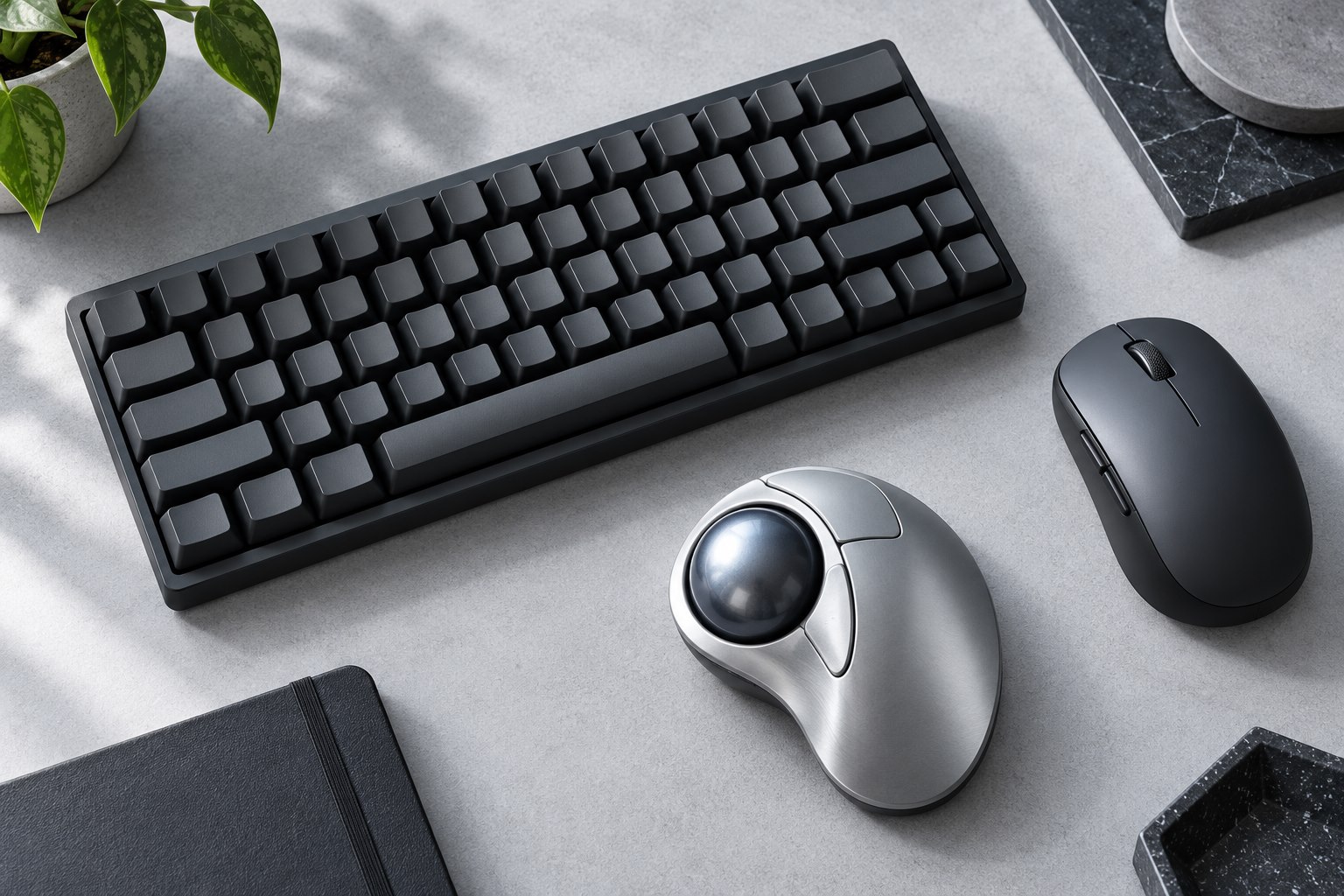
A trackball moves the pointer by rotating a ball while the device body remains in place. This can be useful on a small desk where a conventional mouse repeatedly reaches the edge of its available surface. It does not eliminate hand movement; it changes which movements do the work. Thumb-operated and finger-operated designs feel quite different and often place buttons differently. Try the style that matches your preferred control rather than treating all trackballs as one category. Check handedness too, because some sculpted thumb designs are intended for a specific hand while other layouts are more symmetrical.
Set speed for both travel and precision
Begin with a pointer speed that lets you cross the screen without excessive ball spinning, then test small targets and text selection. Some devices provide a precision mode or programmable button that temporarily slows movement. That can be useful for detailed work, but it should not be necessary for every ordinary click. Operating-system pointer settings and manufacturer sensitivity controls can interact, so adjust one at a time. Use a real spreadsheet, image editor, or document rather than judging only from an empty desktop. A comfortable wide movement and a controllable fine movement are both part of a useful setup.
On a multi-monitor setup, test movement across the full desktop and then back into a small dialog. A setting that crosses three displays easily can make a tiny control difficult to select. A supported precision button or a modest sensitivity adjustment may balance those jobs, but check that using it does not require an awkward grip change.
Learn dragging deliberately
Dragging an object while moving the ball can feel unfamiliar because the click and movement may use different fingers from a mouse. Practice selecting text, moving a window, and dragging a file within a harmless test folder. Some operating systems offer click-lock or related accessibility options that can reduce the need to hold a button continuously. Check whether those options suit the task before assigning complex macros. Keep the ordinary method available so shared use remains understandable. A short focused practice session is more informative than trying to master every gesture during urgent work.
Keep the mechanism clean according to its design
Dust and debris around a trackball's support points can make movement feel rough or inconsistent. Follow the model's instructions for removing and cleaning the ball; do not pry at a housing that is not designed for that procedure. Use only the cleaning materials the manufacturer recommends and let parts dry before reassembly. Avoid adding lubricants as an improvised cure. If the pointer skips, inspect the documented cleaning points and sensor area before increasing sensitivity. A clean, smoothly moving ball provides a much better basis for deciding whether the control style suits you.
Make space for the stationary base
A trackball does not need a mouse sweep area, but it still needs a stable location and room for your hand to approach the controls. Check that it will not slide on the desk when clicking. Place it beside or between keyboard halves only if that position works during actual editing. Keep the old pointer device available while adjusting and do not persist through discomfort. A trackball is especially valuable when its stationary footprint solves a real space constraint. Its success should be judged by accurate everyday control, reachable buttons, and a maintenance routine you can follow, rather than by the novelty of the mechanism.
Sources & further detail
These references support the technical context. Examples and selection advice are editorial explanations; verify the documentation for your exact equipment and software.
A detail we should revisit? Send the guide URL and the relevant documentation to SmithKent5791@outlook.com.
Read the editorial policy