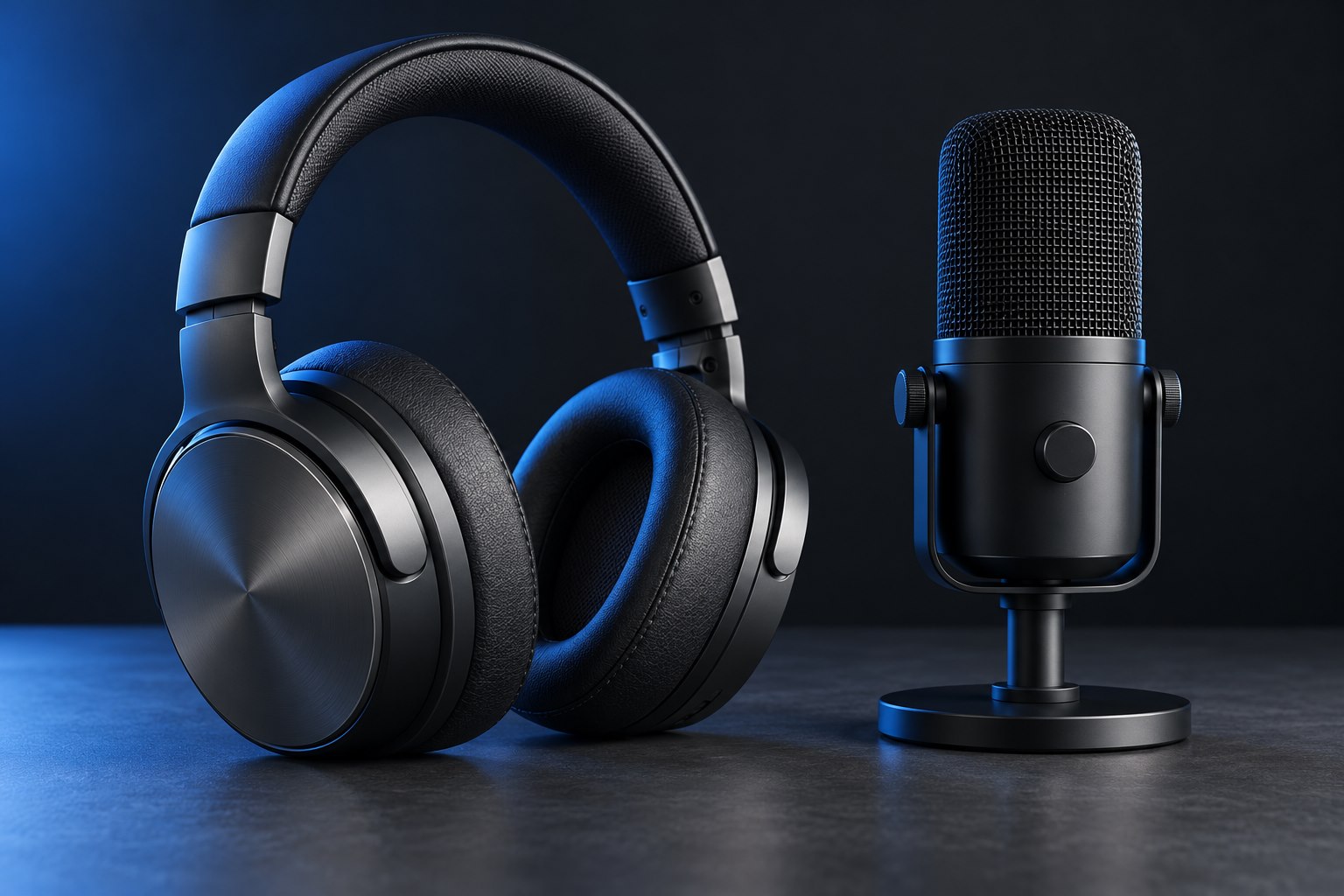
Look at the ports before the settings
A headset combines listening and microphone functions, but computers do not all accept them through the same socket. Some use one combined headset jack; others have separate headphone and microphone jacks. A plain headphone output cannot receive a microphone merely because the plug fits. Count and identify the connections using the computer's manual and the symbols near the ports. A USB headset avoids the analog jack layout by presenting its own audio device, though the application still needs to select it as both input and output.
A desktop with two separate front jacks and a laptop with one combined jack can therefore need different arrangements for the same headset. Keep the computer's port diagram beside the headset's cable description while choosing an adapter. The fact that playback works on both computers confirms only the listening path; the microphone still needs its own compatible route.
Use the adapter that matches the job
An adapter that splits one combined headset plug into separate microphone and headphone plugs is different from a splitter that lets two people listen to one headphone output. They can look similar in a product photograph. Read the stated function and connector direction, and check the wiring standard required by the headset and host. Extension cables also need to carry the microphone connection if you expect it to work. A stereo extension with fewer contacts may pass playback while silently removing the microphone path, creating a problem that no operating-system permission can repair.
Seat the plug without forcing it
Cases, recessed sockets, and bulky connector housings can prevent full insertion. Remove an obstructing cover only when that is safe and appropriate for the device, then check the fit. A partly seated analog plug can produce missing channels, odd sound, or no microphone. Inspect for lint and visible damage using the device maker's cleaning guidance; do not probe the socket with metal tools. If a detachable headset cable has different ends, confirm which belongs at the earcup. Some model-specific connectors include a locking action that a generic cable does not reproduce.
Verify the signal in a short recording
Select the intended microphone in system settings, allow the application to access it, and watch the input meter while speaking. If the computer asks whether you inserted headphones or a headset, choose the option that includes a microphone. Record a sentence, play it back, and lightly move the cable near each connector without sharply bending it. Intermittent audio during gentle movement suggests a mechanical connection issue. A clear local recording with poor meeting audio points toward the application, network path, or processing rather than proving the headset itself is defective.
If the local recording captures the laptop's keyboard loudly while the boom microphone is covered, the app may still be using the built-in microphone. Do not tap or strike the microphone grille to test it. Instead, move the headset microphone closer while speaking normally and observe whether the selected input responds as expected. The device name and a controlled speaking test are safer and clearer than using a loud physical impact.
Keep a useful fallback
For a desktop with unreliable analog detection, a compatible USB audio adapter with a real headset microphone input can be a practical alternative. Check that the adapter supports the headset's connection arrangement; many tiny USB converters provide output only. Keep the setup simple enough to label: headset to adapter, adapter to computer, named input selected in the app. Avoid stacking several unverified adapters, because each adds another possible wiring mismatch. Once the arrangement works, store the correct splitter with that headset. A small label can prevent a listening-only splitter from being substituted later and restarting the same troubleshooting cycle.
Label the adapter by function
A tag reading headset to separate PC jacks is more helpful than a tag saying audio cable. Keep microphone and headphone branches distinguishable by their printed symbols. If the cable is shared with another person, include a small connection sketch in the pouch so the working arrangement survives a move between desks.
Sources & further detail
These references support the technical context. Examples and selection advice are editorial explanations; verify the documentation for your exact equipment and software.
A detail we should revisit? Send the guide URL and the relevant documentation to SmithKent5791@outlook.com.
Read the editorial policy