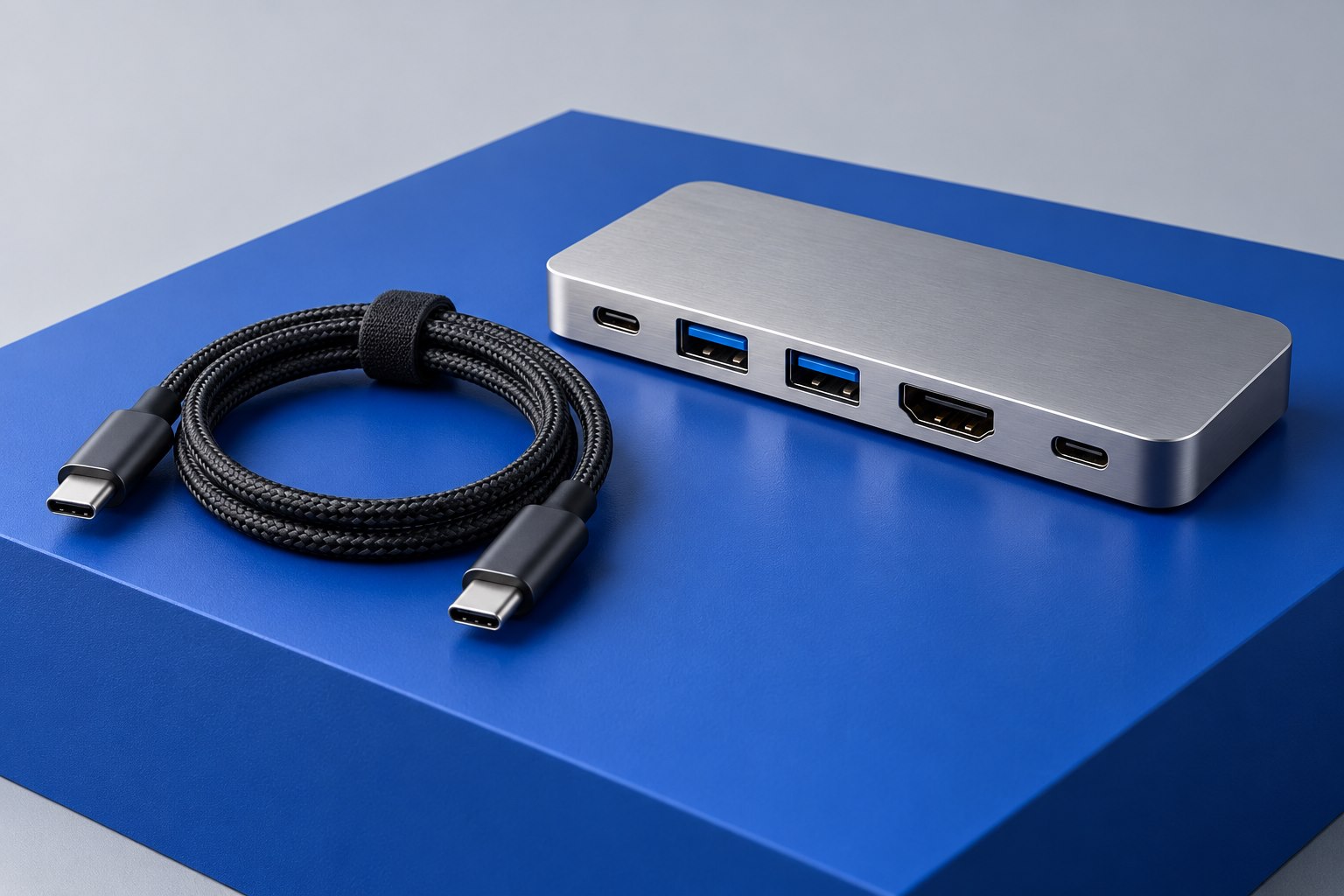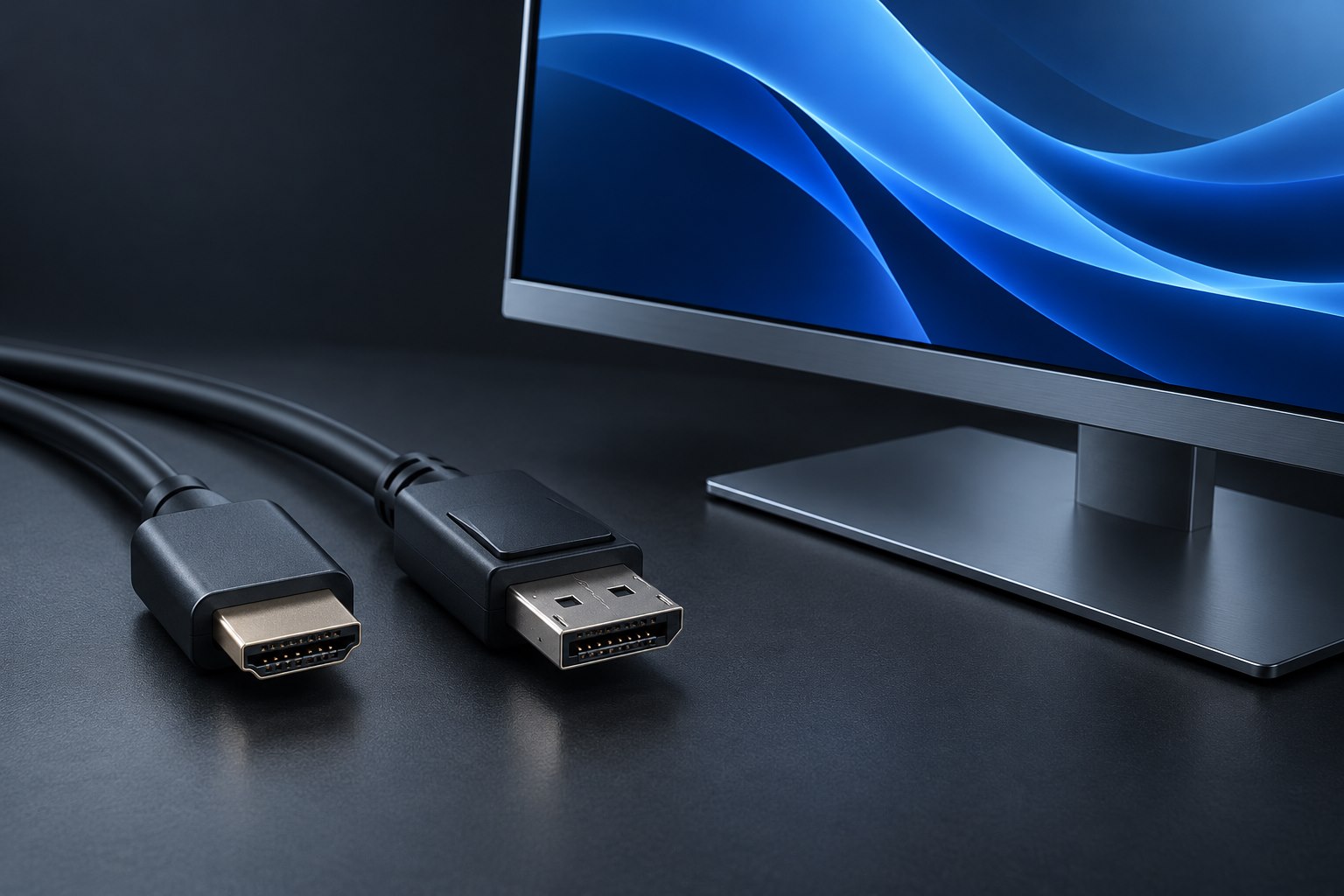
Check for an actual downstream display output
Daisy chaining connects the computer to the first monitor, then the first monitor to the next. The first screen must have a supported downstream display output; two display inputs are not enough. Look for a port explicitly labeled DisplayPort Out or another documented chaining connection. The final monitor may need only a compatible input, but every earlier device in the chain must support forwarding the signal as required.
Read the monitor manual rather than guessing from connector shape. A USB-C socket on the back could be a hub port, a service connection, an upstream input, or a downstream Thunderbolt port. Those roles are not interchangeable. Draw the intended path with arrows and port names before ordering cables. This makes it clear whether the existing monitors can form the chain or whether a separate dock is needed.
Verify the host and operating-system path
DisplayPort Multi-Stream Transport, or MST, is one method used for multi-monitor chains. Thunderbolt display chaining is another arrangement with different requirements. Support depends on the computer, graphics system, operating system, and monitor combination. Dell publishes setup guidance that illustrates these dependencies. Use the documentation for the exact models instead of assuming that a chain demonstrated on another platform will behave identically on yours.
An unsupported arrangement may show a mirrored picture or fail to illuminate the second screen. That does not necessarily mean a cable is defective. Confirm the computer's native external-display limit and whether the intended chaining method provides independent desktops on that system. This check is particularly important for a shared desk where different laptops will use the same monitor pair.
Allocate bandwidth to the entire chain
The connection from the computer carries the display information needed by the chain, so each additional screen adds to the demand. Resolution, refresh rate, color settings, and supported compression can affect the available combination. Do not evaluate each monitor in isolation. Look for a table showing the simultaneous modes that the monitor and host support, including any effect of sharing USB-C bandwidth with hub data.
For a hypothetical pair of office displays, accepting a moderate refresh rate may be a sensible tradeoff for simpler wiring. For a demanding gaming screen plus a secondary panel, separate computer outputs may be more appropriate if supported. The point is to choose the arrangement deliberately. A daisy chain saves a cable at the computer, but it is not automatically the best path for every mix of screens.
Build the chain one monitor at a time
Connect and configure the first display before adding the second. Enable the monitor's MST setting if its manual requires it, then attach the downstream cable to the correct output. In the operating system, select the intended extended layout and verify each display's mode. If the second screen fails, return to the known-working single-monitor arrangement and check the newly added segment rather than changing every setting at once.
Once both screens work, test turning the first monitor off and on, changing inputs, and waking the computer from sleep. These actions reveal how the chain behaves in daily use. Label the upstream and downstream cables and preserve the working menu settings. If the first monitor is later replaced, its forwarding capabilities matter to the entire desk, so keep the original connection diagram with your equipment notes.
Sources & further detail
These references support the technical context. Examples and selection advice are editorial explanations; verify the documentation for your exact equipment and software.
A detail we should revisit? Send the guide URL and the relevant documentation to SmithKent5791@outlook.com.
Read the editorial policy