List what should follow the selected computer
A KVM switch shares a keyboard, video display, and mouse between computers. Many models can also share other USB peripherals, but the details vary. Begin with a simple list of what should move when you press the switch: the monitor, keyboard, mouse, camera, speakers, or printer. A camera that must remain with the work laptop while the monitor changes computers creates a different requirement from a setup where everything switches together.
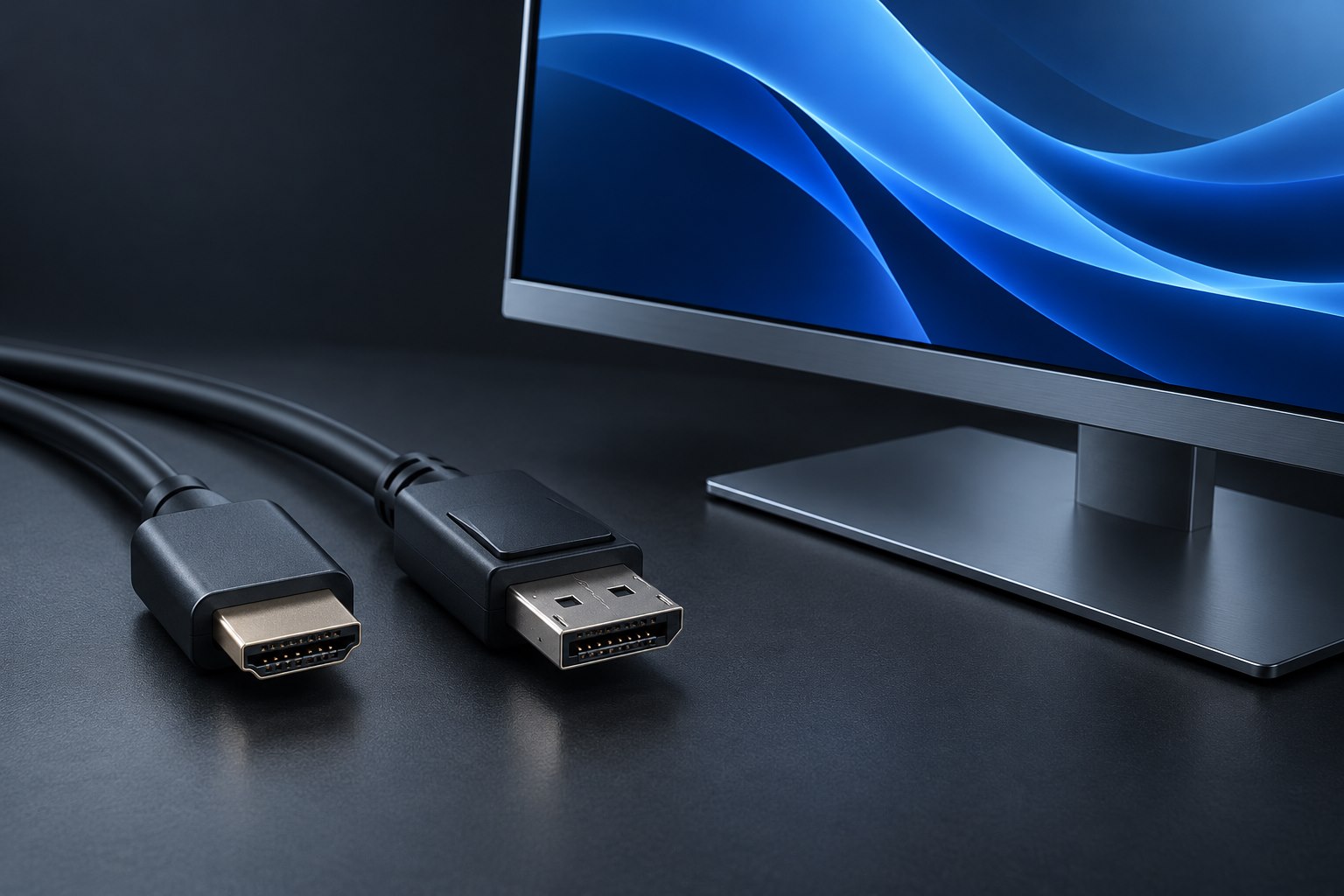
Do not assume that a KVM transfers files between its computers. Ordinary peripheral switching and computer-to-computer file transfer are separate functions. Likewise, connecting a USB-C laptop with one cable may require a KVM that explicitly supports the needed display path and laptop charging. Traditional KVMs often require separate video and USB cables from each computer. Draw both connections rather than imagining that HDMI carries the keyboard data too.
Make a connection schedule
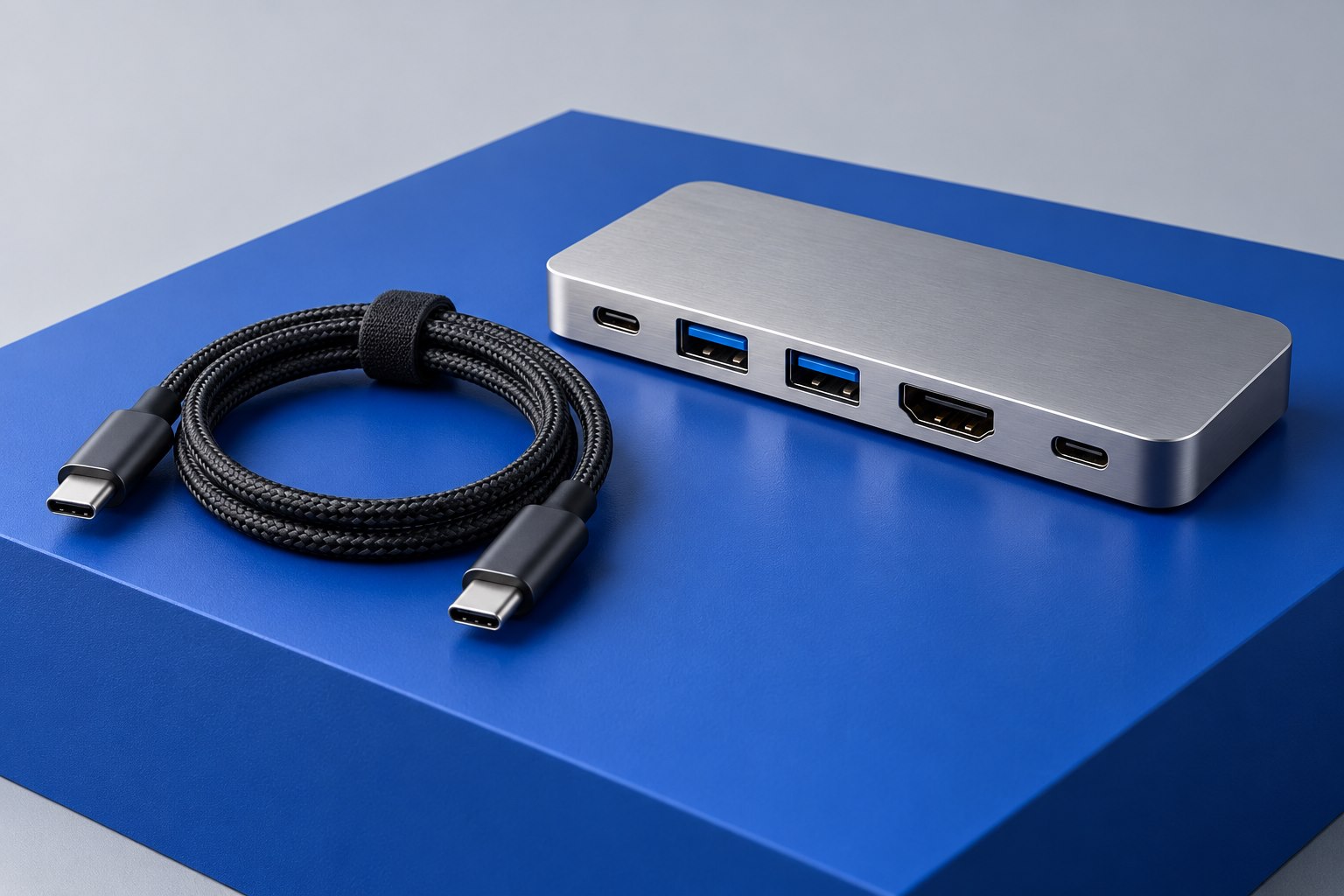
Write one row per computer and include its available video output, USB data connection, and power arrangement. Then add the display inputs and target mode. This reveals whether adapters are necessary and whether a dock sits between one computer and the KVM. Every added converter needs its own compatibility check. A desktop with DisplayPort and a laptop using USB-C may not be equally simple to connect to an HDMI-only switch.
| Connection | Decision to make |
|---|---|
| Computer A video | Direct cable or a documented adapter; required resolution and refresh rate |
| Computer B video | Equivalent supported mode, including any dock in the path |
| USB upstream from each computer | Correct data cable to the KVM's host-side input |
| Shared keyboard and mouse | Dedicated console ports or general USB peripheral ports |
| Optional camera or storage | Supported speed, power, and independent switching behavior |
| Laptop power | Separate adapter or explicitly supported USB-C charging |
Think about what happens to the inactive computer
Some KVMs manage display identification so a computer continues to perceive a connected monitor while you work on the other machine. Others behave more like unplugging and reconnecting a display. That difference can affect window placement, application behavior, and the time needed for a picture to return. Look for a clear explanation of display emulation or EDID handling, and read the manufacturer's limitations rather than assuming every mention of EDID produces the same experience.
Keyboard handling also matters. Dedicated console ports may use emulation to support switching hotkeys, while a general peripheral port may pass through devices differently. A complex keyboard, wireless receiver, or mouse with special software could behave differently in those locations. Check the manual for where such devices belong. If hotkeys are essential, confirm the required keyboard connection and whether your preferred keyboard supports it.
Keep storage switching deliberate
A shared external drive requires more care than a shared mouse. Switching the USB connection while a computer is writing data can interrupt the operation. Close files and use the operating system's safe-removal procedure where appropriate before changing ownership. If storage must remain available to both computers continuously, a peripheral switch is usually the wrong mental model; a properly configured network storage arrangement may be more suitable.
For a work device, consider the organization's peripheral and data-handling rules before sharing storage or installing KVM-related software. This is a practical compatibility issue as well as an administrative one. A camera, keyboard, and mouse may be all that should move between the two machines, while storage remains physically separate. Choose a switch whose port layout supports that intentional separation.
Test the transitions that interrupt work
A useful acceptance test includes both computers awake, either computer asleep, and each computer starting while the other is selected. Confirm the intended monitor mode after every transition. Test the camera in the actual conferencing application and check whether audio follows the selected computer as expected. The important result is not merely that both machines can show a desktop once, but that repeated switching is predictable.
Keep the switch button accessible. A remote wired button can be convenient if the main box belongs behind a monitor, while a keyboard shortcut avoids another item on the desk. Label the inputs with computer names and keep adapters supported so cables do not pull the KVM around. When the setup is stable, save the connection schedule; it makes replacing one computer much easier without rebuilding the whole desk by trial and error.
Sources & further detail
- StarTech: KVM display identification and peripheral specifications
- ATEN: Independent peripheral switching FAQ
These references support the technical context. Examples and selection advice are editorial explanations; verify the documentation for your exact equipment and software.
A detail we should revisit? Send the guide URL and the relevant documentation to SmithKent5791@outlook.com.
Read the editorial policy