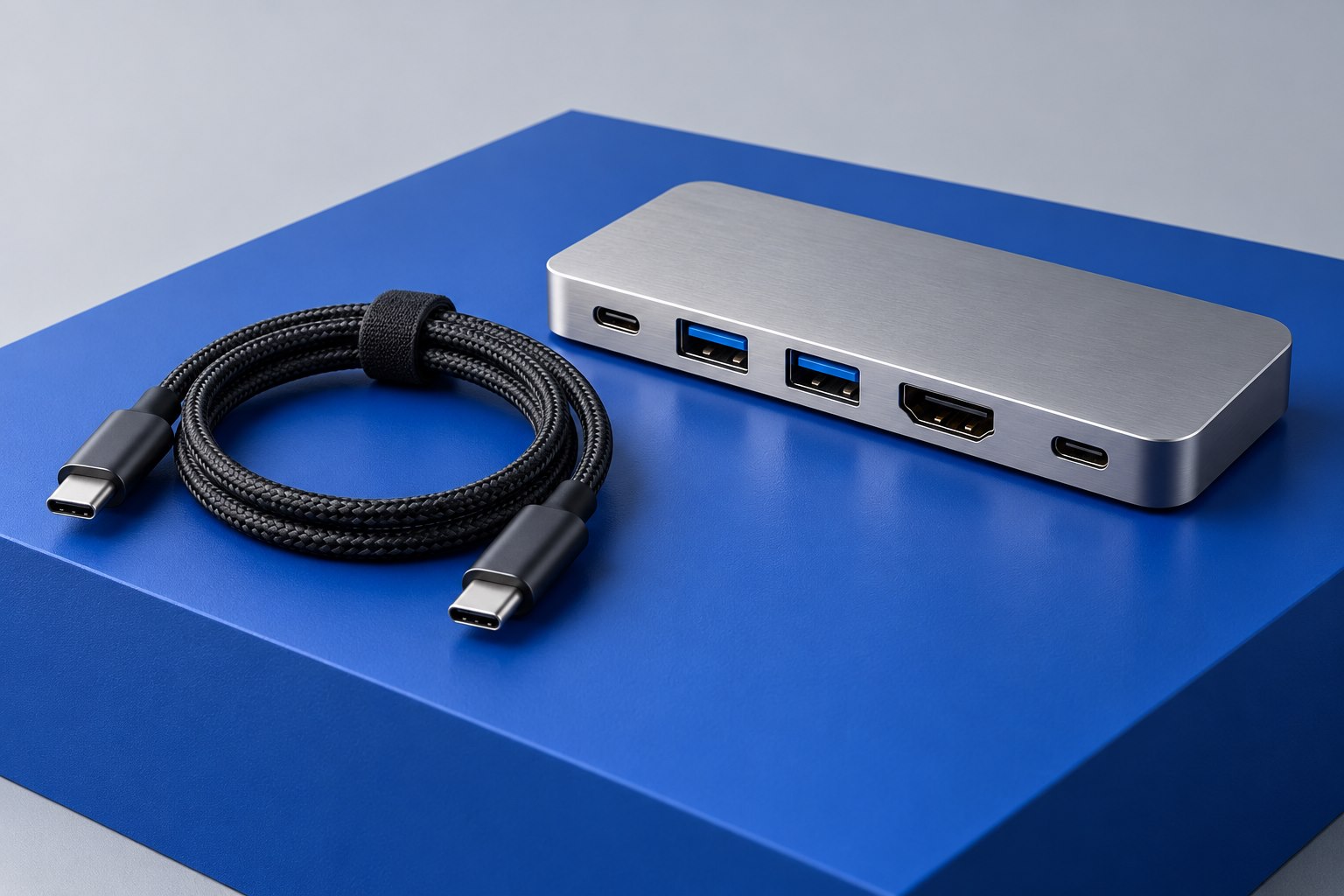
Identify the dock more precisely than its appearance
Dock families can contain similar-looking models with different controllers, power supplies, or update packages. Read the model label and any hardware revision before downloading firmware. Use the manufacturer's support page for that exact product. If the dock came from an employer, check the organization's supported update route; a managed tool may coordinate the dock with the laptop's other drivers.
Write down the current firmware version where the manufacturer's utility exposes it, along with the host computer and operating system. Keep a short description of the problem being addressed. A useful reason might be a documented wake issue or compatibility improvement relevant to the setup. An update is easier to evaluate when there is a clear before-and-after behavior to check.
Read requirements before launching the installer
A dock update can require a particular host platform, direct connection, external power, or restart sequence. Some utilities update several internal components and may temporarily interrupt displays or USB devices. Dell's dock administrator documentation illustrates that an update is a procedure with status messages and completion requirements, not simply a file copied to the dock. Follow the current instructions for the actual model.
Do not begin just before a meeting or while a large transfer is running through the dock. Save work, close applications using connected storage or cameras, and safely disconnect removable drives where appropriate. Make the laptop's own screen available so a temporary loss of external video is less confusing. Keep the required power connected throughout the process.
Prepare a short, reversible maintenance plan
- Record the dock model, existing firmware, host computer, and relevant release-note item.
- Download the update from the official support page and confirm the package matches the model and operating system.
- Read the complete installation and restart instructions before starting, including any restrictions on attached peripherals.
- Save active work and stop data transfers through the dock so a reset does not interrupt useful files.
- Allow a maintenance window long enough to finish the update and verify the normal desk configuration afterward.
Interpret the result using the manufacturer's procedure
A temporary black screen or device reconnect can be expected during some updates, but the correct response depends on the documented process. Do not unplug the host cable merely because progress appears paused. Wait for the utility's completion result and follow its requested restart or power-cycle sequence. If it reports an error, preserve the exact message and consult the relevant support guidance rather than repeatedly launching different packages.
Some failures have model-specific recovery steps. A procedure published for another dock should not be assumed safe or effective for yours. Keep the original supply and host cable in the setup while troubleshooting so the update path remains as close as possible to the manufacturer's requirements. If a recovery step is unclear, a precise support request is preferable to improvising a sequence of disconnections.
Verify the behavior that justified the update
After completion, reconnect the normal peripherals and confirm displays, charging, data, and wake behavior. Reproduce the original trigger if it was safe and predictable. Record the new firmware version and whether the symptom changed. This turns maintenance into evidence: you can tell support that a specific update fixed, failed to fix, or altered a specific problem.
Do not assume that firmware removes a hardware capability limit. An update may improve compatibility, but it cannot be relied on to provide an undocumented display count or charging output. Keep the dock's specification alongside the maintenance record. A stable setup with current relevant support information is more useful than a history of unexplained updates applied whenever an unrelated accessory misbehaves.
Sources & further detail
These references support the technical context. Examples and selection advice are editorial explanations; verify the documentation for your exact equipment and software.
A detail we should revisit? Send the guide URL and the relevant documentation to SmithKent5791@outlook.com.
Read the editorial policy