Describe the windows you need
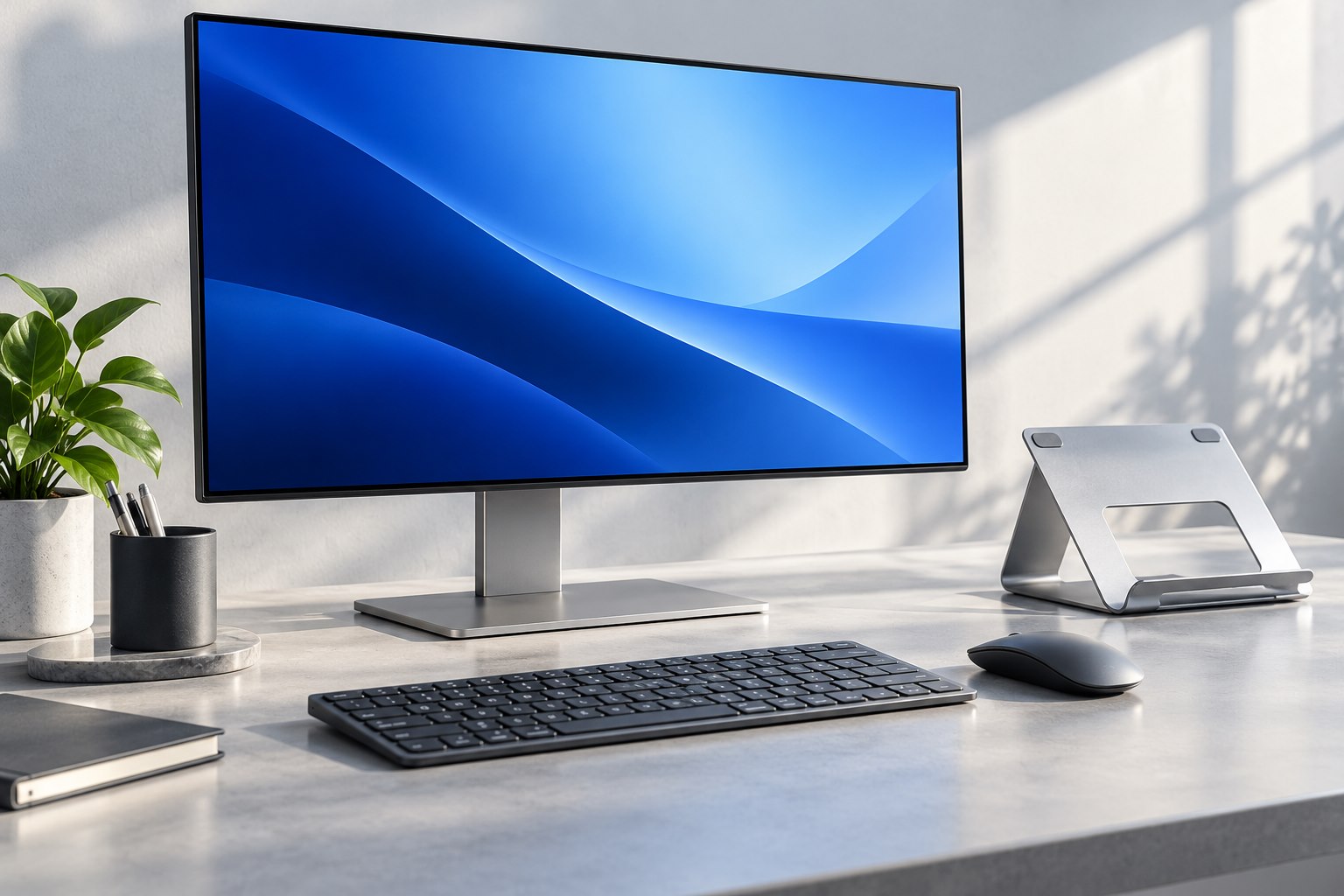
Two displays create a natural boundary between tasks. One can hold a main document while the other carries reference material or a call. An ultrawide offers a continuous surface that can suit timelines, large spreadsheets, or several side-by-side windows. Neither arrangement automatically makes work more productive. Start with a list of applications and how often you need to compare them simultaneously. If you spend most of the day in one narrow document, extra horizontal space may become a distant parking area. If your work uses a wide timeline, removing the central bezel can be a tangible benefit.
Choose a primary viewing area
With two monitors, decide whether one is primary or both are used equally. Center the primary display for the work that occupies most of the day, placing the secondary where it remains easy to consult. If both are equally important, consider the combined arrangement and the position of the center seam. An ultrawide can reduce the seam but may place its far edges farther from the chair. Curvature changes that geometry, though preference and desk depth still matter. Use a paper outline or measurements to estimate how much turning and reaching the final setup will require.
Check the computer's actual display support
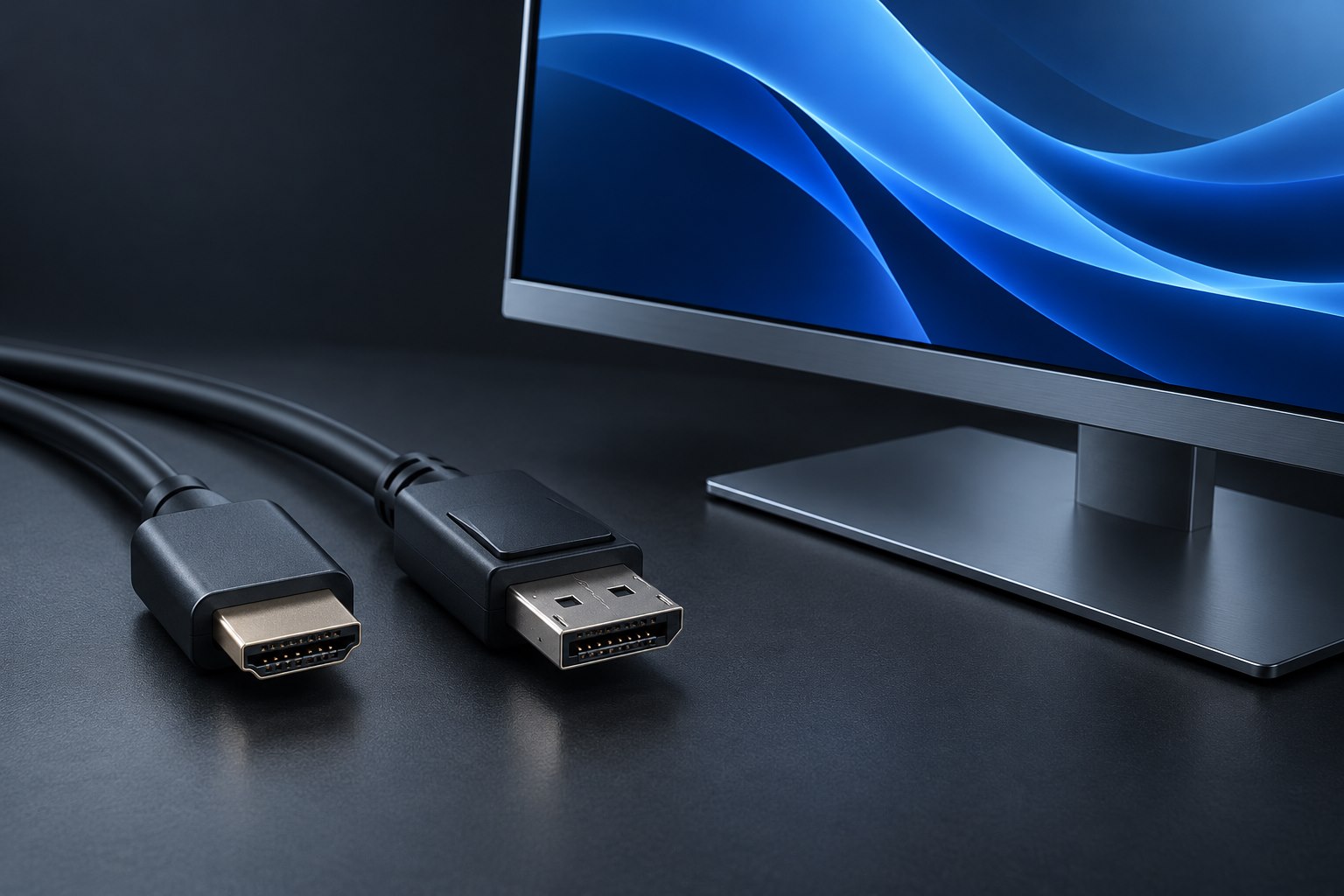
The number of supported external displays, available resolution, and refresh rate depend on the computer and connection path. A dock with several sockets does not guarantee that every host can drive all of them independently. For an ultrawide, confirm the exact native resolution is supported through the intended port and adapter. For two displays, confirm independent extended-desktop operation rather than only mirrored output. If you alternate between work and personal computers, check both. Avoid choosing the entire desk around capabilities available only on one of the machines you need to use.
Think through meetings and screen sharing
Sharing an entire ultrawide desktop can make content appear small to people viewing it on ordinary laptop screens. Sharing a single application window may be a better routine, but verify that your meeting tool supports the workflow you need. With two monitors, one can be shared while the other holds notes, although confidential windows still need careful placement. Test a presentation and a live demonstration before relying on the arrangement. Check where new dialogs appear and whether full-screen mode occupies the intended display. The layout should make collaboration clearer rather than requiring constant window rearrangement during a call.
A practical meeting rehearsal is to share the main application, open a dialog, switch to a reference page, and return. Ask how readable it appears on the recipient's ordinary screen. This reveals whether your window arrangement needs a presentation-friendly size. Save that size as a separate layout if supported, so preparing for a meeting does not require reorganizing the entire desktop.
Plan for different pixel densities
Two monitors of different size or resolution may need different scaling settings to keep text similarly readable. Moving a window between them can expose how well the application handles those changes. Matching displays can simplify the experience, but replacing a useful existing monitor solely for symmetry may not be necessary. An ultrawide provides one continuous density and avoids a mismatch, while two displays offer independent orientation and placement. A portrait secondary screen can be useful for long documents, provided the monitor supports that orientation. These are workflow choices rather than a simple contest between the number of panels.
Compare the complete desk cost
Include stands or arms, the necessary connections, and the desk space occupied by the bases. Two separate screens can be upgraded independently and leave one usable if the other needs service. One ultrawide can simplify cabling and visual organization but creates a single large object to move and support. Check the monitor's weight and depth if using an arm, especially for a large curved model. Choose window-management features you understand and save a few useful layouts. The best arrangement makes your common pairings of applications easy to see without filling every available inch merely because it exists.
Consider how the desk will be moved or serviced. Two moderate displays can be handled separately, while a large ultrawide may need more space and assistance to reposition safely. Keep original packaging when feasible for an unusually large panel. This is not a reason to avoid the format, but it belongs in the practical cost of owning equipment that extends well beyond an ordinary monitor footprint.
Two useful example layouts
For document work with frequent video meetings, a main landscape monitor plus a smaller secondary screen can keep the document centered and the call nearby. The secondary need not match the main screen's refresh rate if its role is mostly reference material. For editing a wide project timeline, a single ultrawide can preserve continuity while tool panels sit at the sides. In both cases, test the readable size of the actual content before ordering. The decision becomes clearer when each part of the screen has an identified job.
Sources & further detail
These references support the technical context. Examples and selection advice are editorial explanations; verify the documentation for your exact equipment and software.
A detail we should revisit? Send the guide URL and the relevant documentation to SmithKent5791@outlook.com.
Read the editorial policy