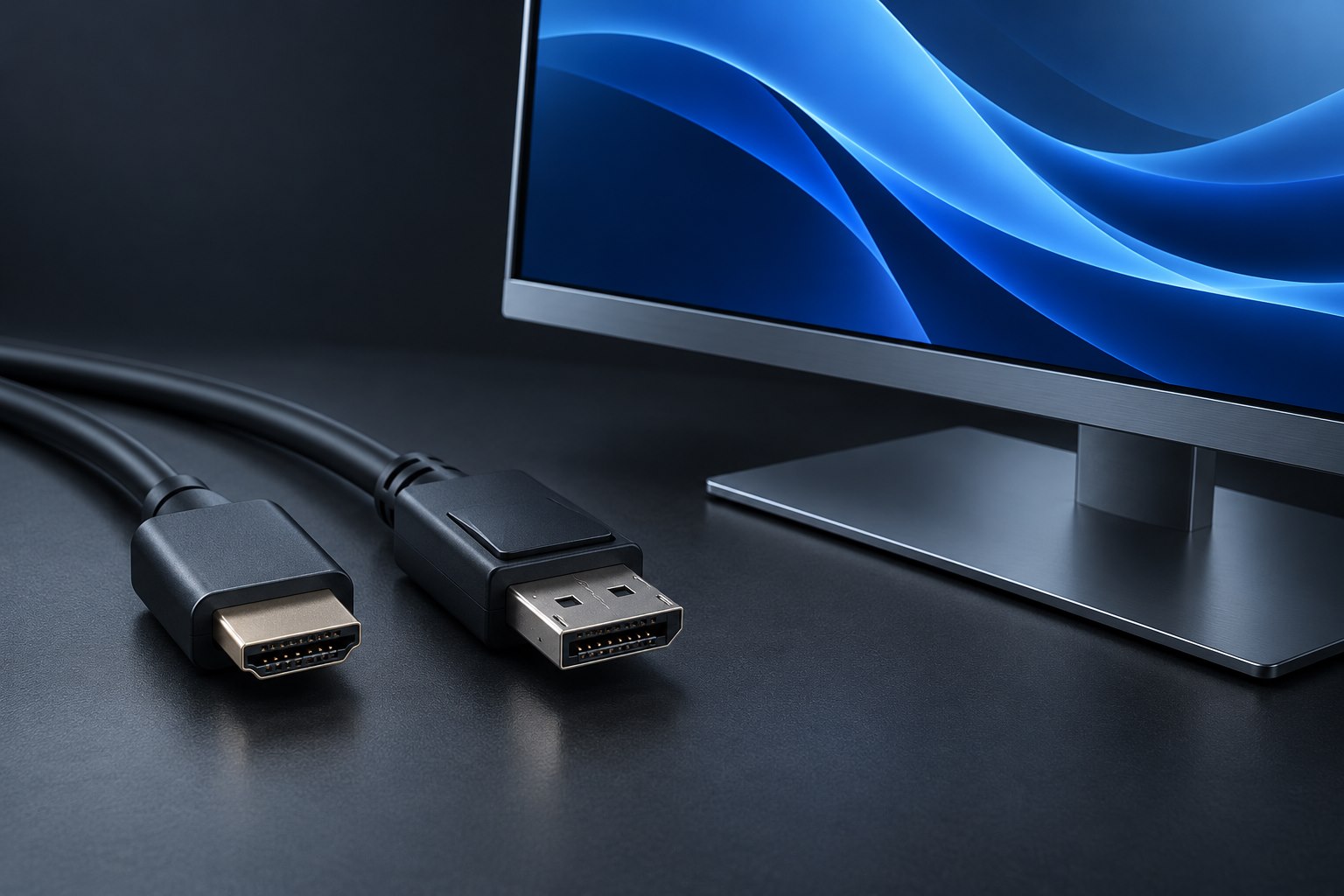
Recognize the two separate paths
A monitor can display a perfect picture while a keyboard plugged into its USB socket does nothing. In many setups, video and USB data travel on separate paths. HDMI or a conventional DisplayPort cable carries the picture, while a USB upstream cable connects the monitor's built-in hub to the computer. Dell's troubleshooting guidance specifically calls for that upstream connection when monitor USB downstream ports do not work.
Look in the monitor manual for upstream and downstream labels. The upstream connection leads toward the computer; downstream sockets accept peripherals. An upstream connector may be USB-B or USB-C depending on the model. Plugging the computer into a downstream socket does not establish the intended hub path. The connector's physical fit is less informative than its documented role.
Understand when one USB-C cable does both jobs
On a compatible USB-C monitor and computer, a suitable cable can carry video, USB data, and sometimes charging together. That is a feature of the complete connection, not a property of every USB-C socket. If you replace the supplied cable with one chosen only for charging, some functions may disappear. Use the monitor's documented host connection and verify the replacement cable supports the required data and video capabilities.
A monitor may also have more than one upstream input for sharing its hub between computers. In that case, an on-screen setting may associate a USB upstream connection with a particular video input. If the picture follows the desktop computer while the keyboard remains assigned to the laptop, inspect that mapping. Repeatedly moving the keyboard between downstream ports will not correct an upstream assignment.
Check the monitor's standby and USB settings
Some monitors offer settings that determine whether USB charging remains available in standby or whether the hub follows the active input. These options can affect a phone charging overnight or a keyboard used to wake the computer. Read the model-specific menu description before changing it. Power availability at a socket and an active data connection are different questions, so a charging phone does not prove that the hub is connected to the right host.
For a shared desk, choose the standby behavior intentionally. Keeping power available can be useful for charging, while automatically switching the hub with the display can reduce manual steps. Neither setting is universally preferable. Record the selected behavior so another user does not interpret an expected shutoff as a broken USB port.
Use a simple peripheral to isolate the path
Test with a basic wired mouse or another known-working low-power device. Connect it directly to the computer first, then to the monitor after confirming the upstream cable. If it works through the monitor, investigate the original peripheral's power or compatibility needs separately. If it does not, try the documented upstream port and a suitable known-good USB cable before assuming that every downstream socket has failed.
Once the hub works, place permanent peripherals on rear ports and reserve accessible side or lower ports for temporary devices. Secure the upstream cable with enough slack for monitor movement. Label it as USB data if it sits beside a similar-looking power or display lead. This small distinction helps preserve a working setup when the monitor is moved, a laptop is replaced, or someone tidies the cables.
Sources & further detail
These references support the technical context. Examples and selection advice are editorial explanations; verify the documentation for your exact equipment and software.
A detail we should revisit? Send the guide URL and the relevant documentation to SmithKent5791@outlook.com.
Read the editorial policy