Inspect the monitor's port roles
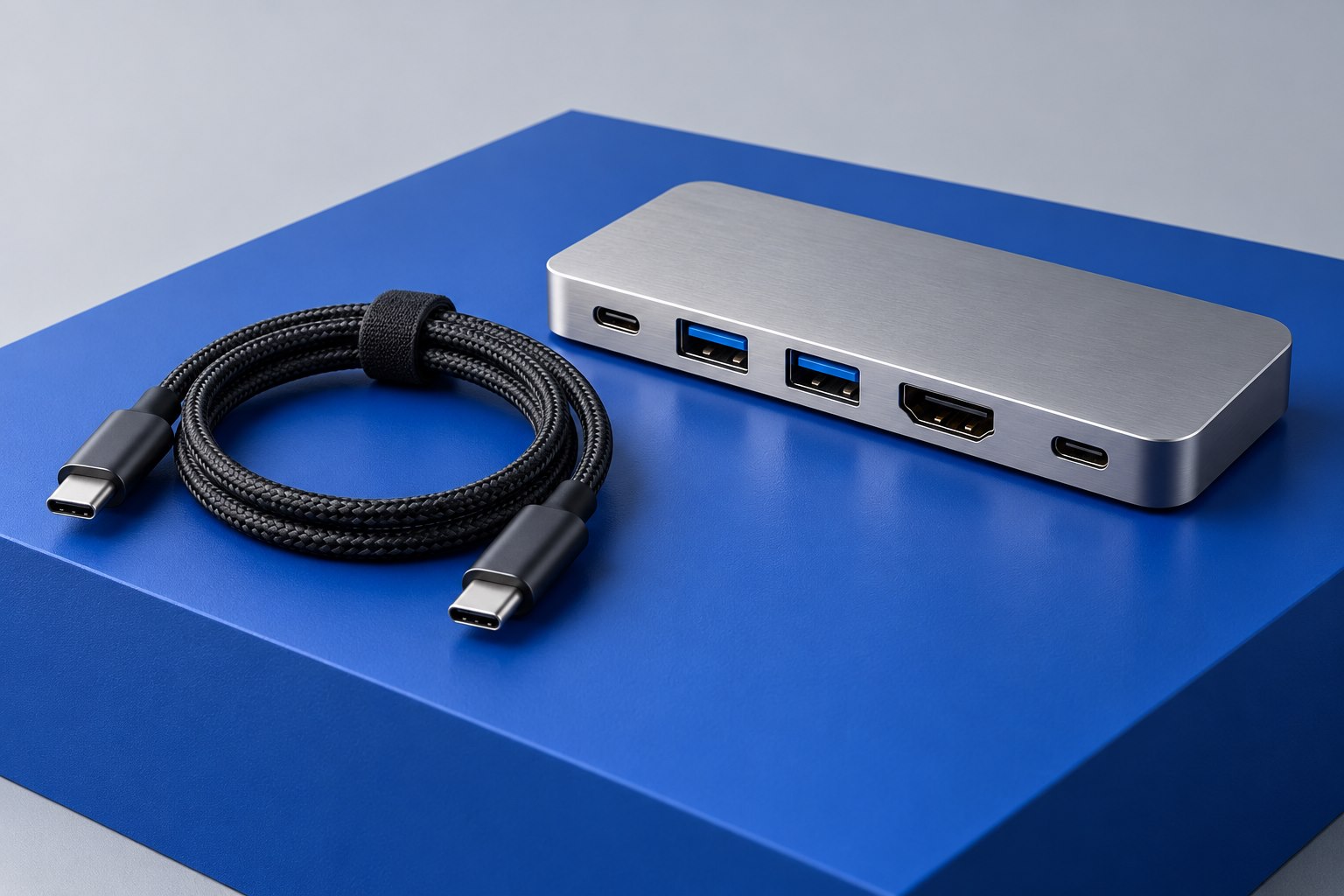
Portable monitors often place several small connectors along a thin edge, and their jobs are not always identical. One USB-C port may accept video and power, another may accept power only, and an HDMI input may require a separate power connection. Read the diagram for the exact model. ASUS's portable-monitor guidance illustrates why the USB-C host's display capability and the monitor's port labels both matter.
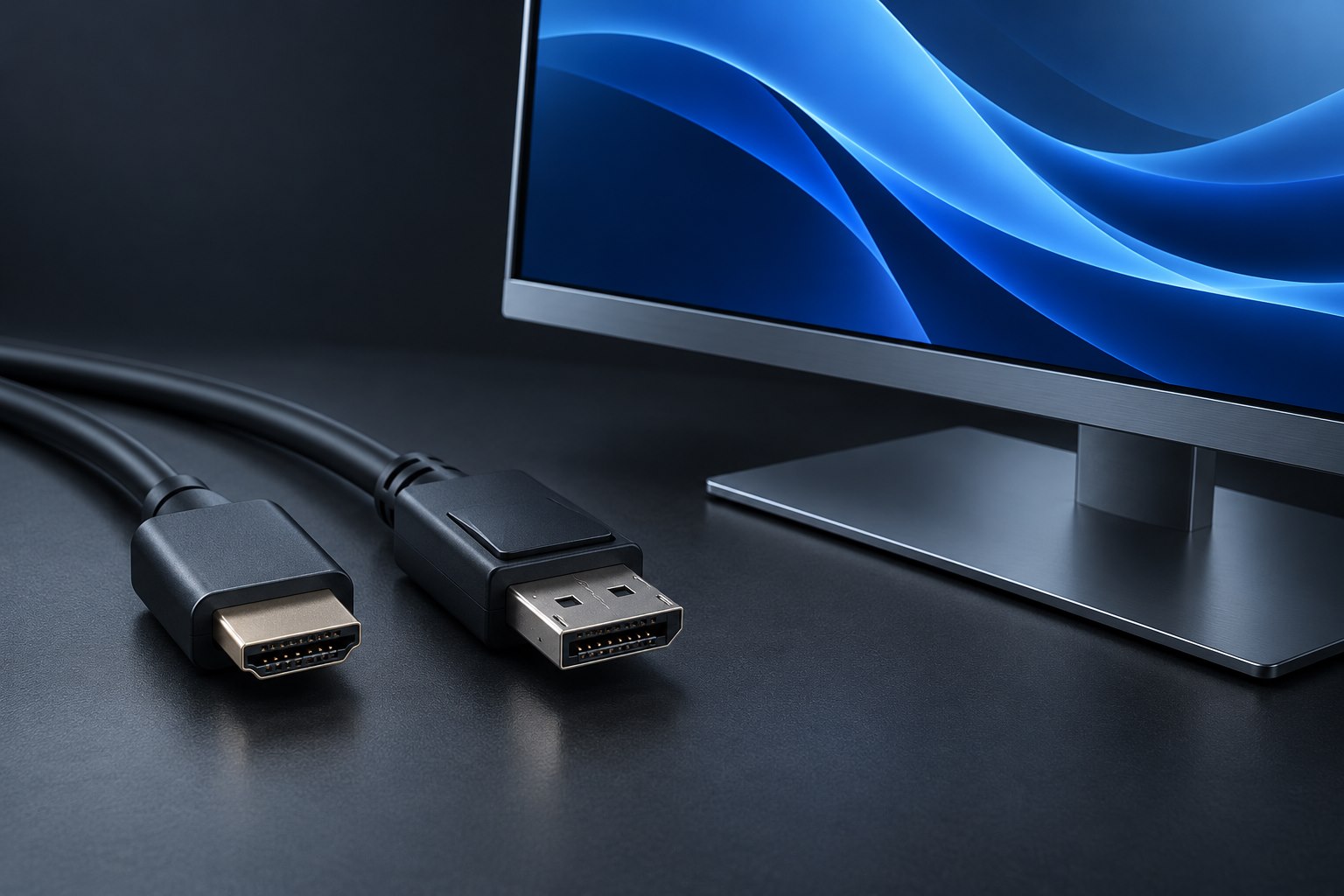
Choose the connection arrangement before packing the monitor for a trip. If the computer supports the required USB-C video path and can supply enough power, one suitable cable may work. If the computer sends video through HDMI instead, the monitor commonly needs a separate documented power source. The HDMI lead should not be assumed to power the panel.
Evaluate the laptop battery tradeoff
A screen powered from the laptop becomes part of the laptop's energy use. This can be convenient at a desk with a charger and less useful during a long outlet-free session. The effect depends on the display, brightness, workload, and computer. Rather than relying on a universal runtime estimate, test the normal arrangement before depending on it for a journey or presentation.
If the monitor supports external power or power passthrough, read how that function is implemented. A port accepting a charger does not automatically mean it delivers the laptop's preferred charging level. Check the monitor's host-power specification and use a compatible supply and cable. A partly powered arrangement can look successful at first while the computer's battery still falls during work.
Make the cable kit unambiguous
Keep the intended USB-C display cable separate from ordinary charging leads. Include the required HDMI adapter or smaller connector variant only if the monitor uses it. Label the power-only port in a discreet way if the manufacturer's markings are hard to read. A portable screen is often used in unfamiliar rooms, where reducing trial and error is more valuable than packing several visually identical spare cables.
| Available source path | Likely planning requirement |
|---|---|
| Compatible USB-C display output | Suitable video-capable cable and adequate power for the panel |
| HDMI output | Correct HDMI cable plus the monitor's documented separate power source |
| USB-C data only | A different supported video path; a passive adapter cannot create native video |
| Monitor charging passthrough | Verified charger input and actual power delivered to the computer |
Check the stand, brightness, and working position
The electrical setup is only part of portability. A thin screen with a shallow stand may tip when a stiff cable pulls sideways. Route the cables toward the rear and leave slack at the connector. Test the stand on the type of table you expect to use, and check that the laptop and monitor can sit at comfortable relative heights. A lightweight screen is less useful if it requires improvised support at every stop.
Set brightness for the room rather than leaving it at maximum by default. This can improve comfort and may reduce power demand. If the display repeatedly restarts at higher brightness, consult the model's power requirements and use a suitable external source where supported. Do not assume that changing software settings will fix an inadequate power path. Establish a stable arrangement at home and pack the specific components that produced it.
Sources & further detail
- ASUS: Identify USB-C display support for portable monitors
- ASUS: Portable monitor signal and power example
These references support the technical context. Examples and selection advice are editorial explanations; verify the documentation for your exact equipment and software.
A detail we should revisit? Send the guide URL and the relevant documentation to SmithKent5791@outlook.com.
Read the editorial policy