Choose a task that benefits from height
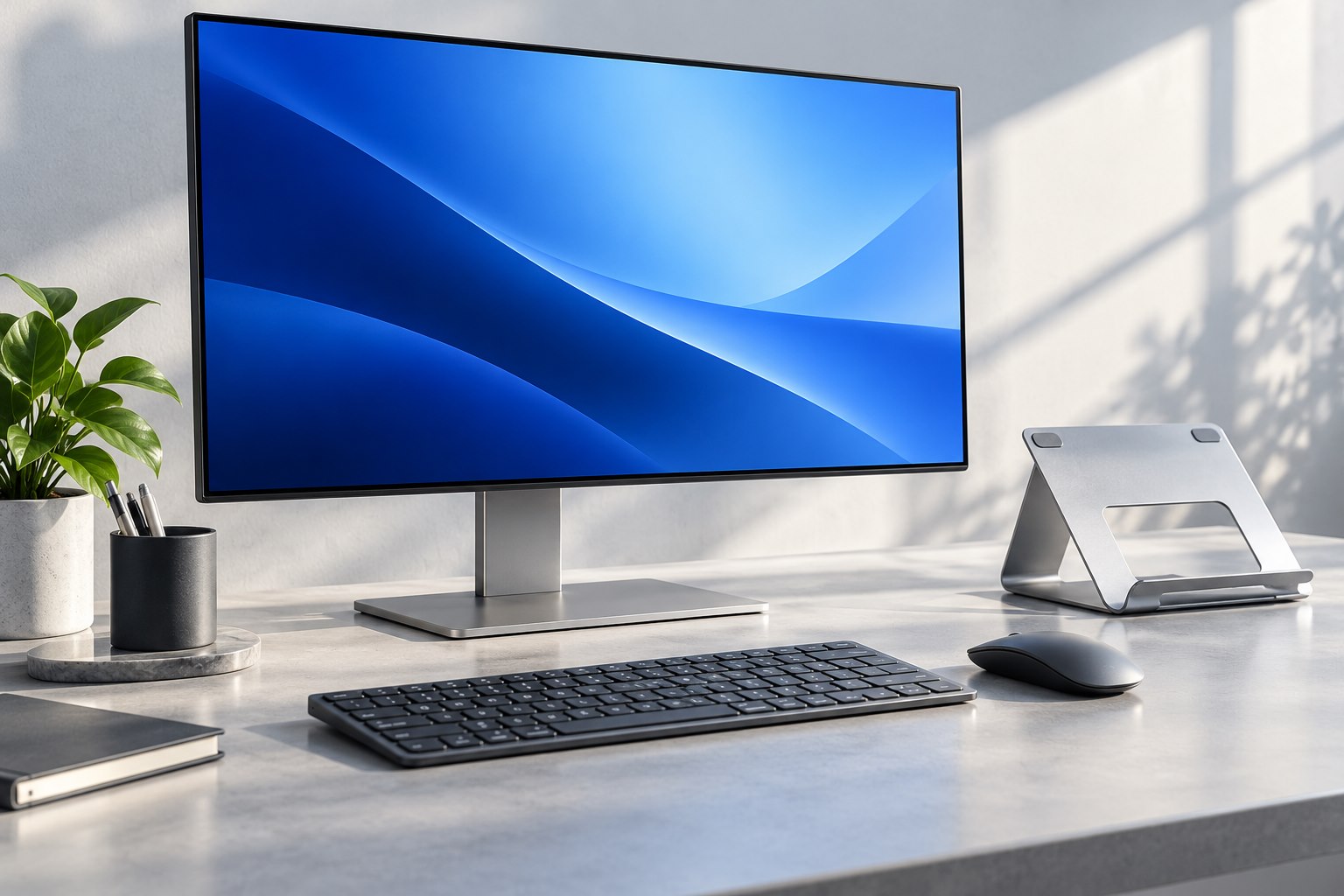
Portrait orientation can show more of a long document, a code file, or a narrow reference page without scrolling. It is less helpful for wide spreadsheets, video, or applications with large horizontal toolbars. Start with a specific role for the screen rather than rotating it simply because the stand allows it. A secondary portrait monitor can be useful beside a landscape main display, but the content should remain readable at the chosen scale. If every window must be enlarged or repeatedly panned sideways, the extra height may be solving the wrong problem.
Confirm that the monitor supports rotation
A stand's apparent movement is not the only consideration. Check the exact monitor manual for supported orientation and operating conditions; some displays should not be used in portrait mode even if an aftermarket mount can physically turn them. If rotation is supported, follow the required sequence, which may include raising or tilting the panel before turning it. Leave room so a corner does not strike the desk. Do not rotate a loaded arm or stand beyond its designed movement. Support the screen as instructed and keep pressure off the panel surface.
Set the software orientation separately
Physically turning the display does not always rotate the image automatically. Select the intended monitor in the operating system's display settings, choose the correct orientation, and confirm the result. If several screens are connected, use the identification feature to avoid rotating the wrong one. Arrange their virtual positions to resemble the physical layout so the pointer crosses edges predictably. Scaling may need adjustment after rotation, but try to preserve a readable native-resolution setup. Test your main applications, including dialogs and full-screen modes, because not every interface adapts elegantly to a narrow window.
Use a test document containing a table, a long heading, and a normal paragraph. This exposes whether the portrait window forces excessive wrapping or hides important columns. For reference reading, a narrow page may be ideal; for editing a complex table, keeping a landscape main display available can be more practical.
Place the screen and leave room for movement
A tall screen can put its top edge well above the area you normally use. Position it so the sections you read most often are convenient, rather than centering the whole panel purely for visual symmetry. A small portrait display may be easier to consult than a very tall large one on a shallow desk. If it is secondary, keep the primary task centered on the main screen and place reference content where a brief glance is enough. Avoid making frequently used controls live at the far top corner if that requires repeated large movements.
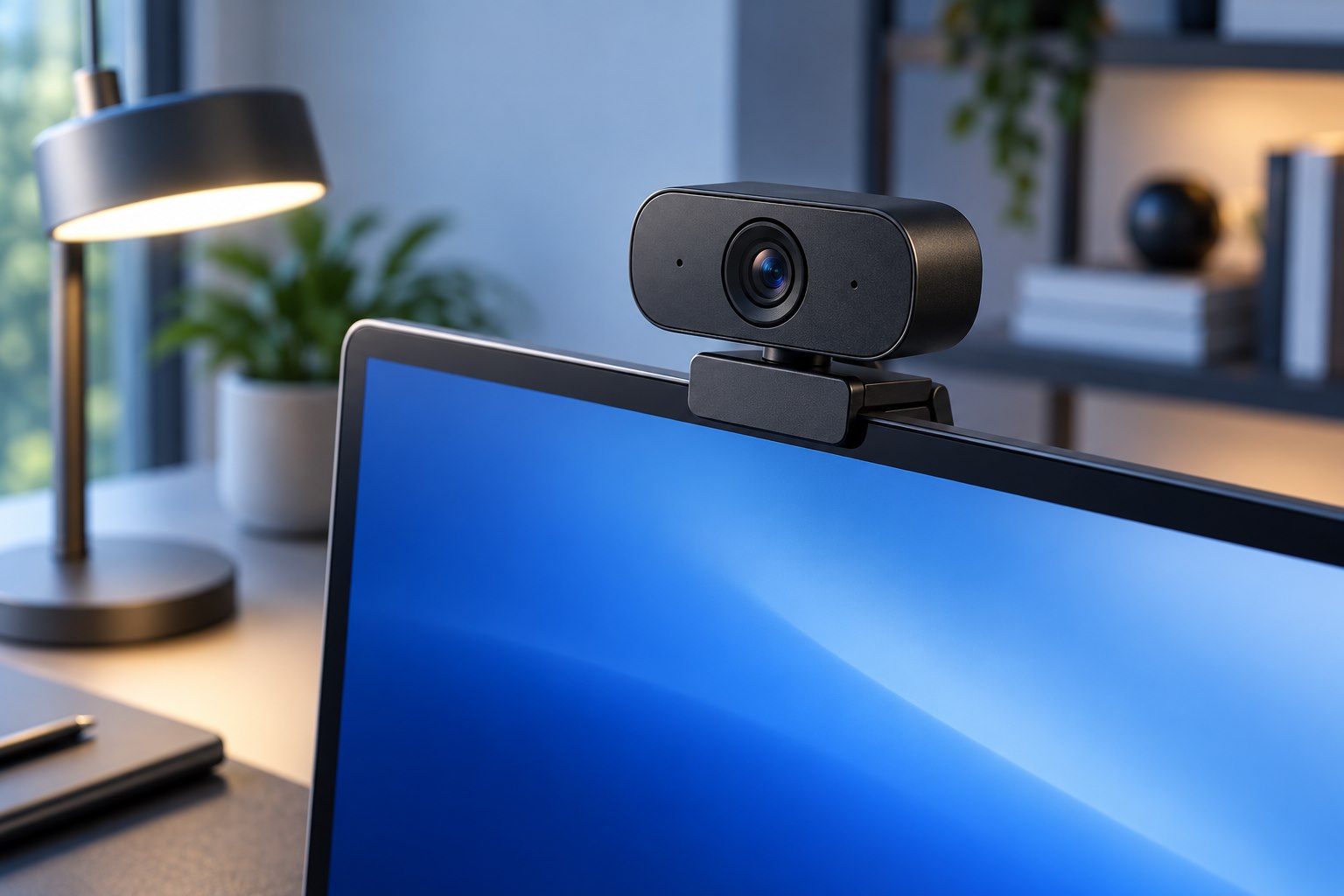
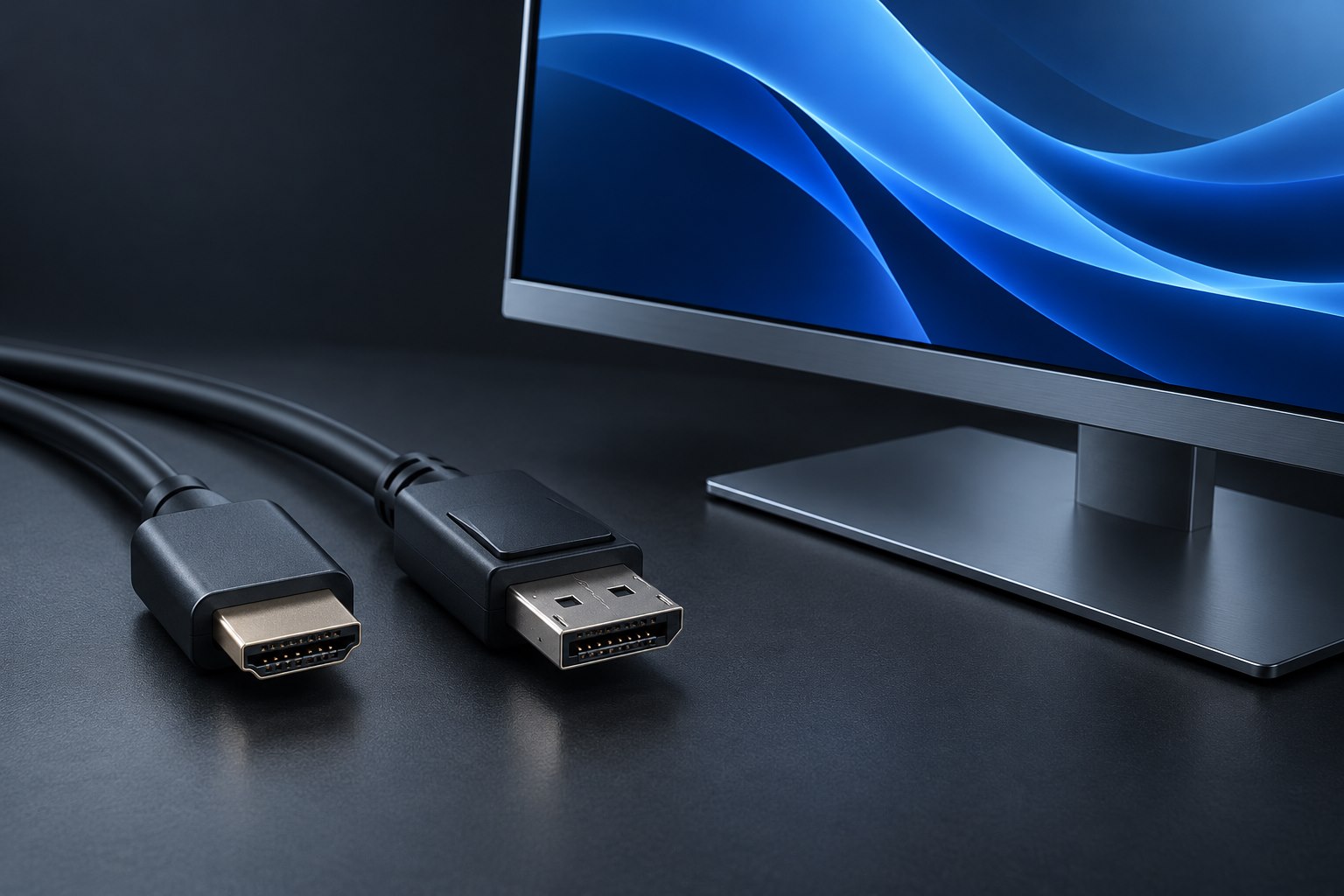
Rotation changes where ports sit and how cables bend. Leave sufficient slack and verify that plugs do not press against the desk or arm. A webcam attached to the monitor may need a different mount or position once the top edge becomes a side edge. Built-in speakers may also change their apparent placement. Test the desk's full movement if it adjusts in height. After setup, use a real reading or editing task for a while and note whether the extra vertical view reduces interruptions. Keep portrait orientation when it makes that task easier, and retain the ability to return to landscape when a wider workspace is more useful.
Sources & further detail
These references support the technical context. Examples and selection advice are editorial explanations; verify the documentation for your exact equipment and software.
A detail we should revisit? Send the guide URL and the relevant documentation to SmithKent5791@outlook.com.
Read the editorial policy