Define the outage response before the product size
Decide what the UPS must accomplish. A common desktop goal is to keep the computer and one display running long enough to save work and shut down. Another is to preserve network access while a laptop uses its internal battery. These goals require different equipment lists and runtimes. Without that decision, a large VA number can look reassuring while saying little about whether the unit supports the desired workflow.
Write a target response in minutes and list the devices essential to it. Do not automatically include every object plugged in near the desk. Extra chargers, lights, or nonessential displays consume part of the backup capacity. Check the UPS manufacturer's guidance for supported loads and excluded equipment. The free sockets are a connection layout, not a recommendation to fill them all.
Check watts and VA without treating them as identical
UPS products commonly state both a watt rating and a volt-ampere rating. The connected load must stay within the applicable limits. Eaton's sizing guidance explains that watts and VA are related through power factor, so the two figures cannot simply be exchanged in every case. For a consumer purchase, use the manufacturer's sizing tool or the equipment's documented requirements rather than assuming that a 1,000VA label means 1,000 watts.
A computer power supply's maximum rating is not the same as the computer's everyday draw, but the UPS must still be selected for the load it may actually face. Manufacturer specifications, a suitable measurement method used within its instructions, or a vendor sizing tool can help establish the requirement. Include the monitor and other essential equipment. Allow appropriate headroom according to the UPS maker's recommendations rather than operating at an uncertain limit.
Read the runtime curve at your load
Output capacity and stored battery energy are separate dimensions. Two UPS units with similar output ratings can have different runtimes. Look for the manufacturer's runtime curve or table at a load close to your expected equipment draw. A prominently advertised runtime may refer to a much smaller load than your computer uses. Do not compare products using different test loads as though the figures describe the same situation.
Runtime changes with battery condition, temperature, and actual workload. A planning figure should leave enough time for the intended shutdown process rather than depending on the final seconds of a new battery's estimated reserve. If the goal requires long operation, discuss an appropriately sized backup solution rather than assuming a small desktop UPS can be extended indefinitely by attaching unsupported batteries.
Apply the numbers to a modest example
For an illustrative planning exercise, suppose the supported load assessment gives 180 watts for a computer during its intended work, 30 watts for one monitor, and 20 watts for essential networking equipment. The combined figure is 230 watts. You would then check a candidate UPS’s watt and VA limits and consult its runtime curve near that load. A printed runtime for a 50-watt load would not answer the question. If the shutdown process needs several minutes, select a documented runtime with suitable reserve rather than choosing a unit that only just matches that duration when new. These example numbers describe no particular product and should be replaced with the actual equipment assessment.
Inspect outlets, compatibility, and communication
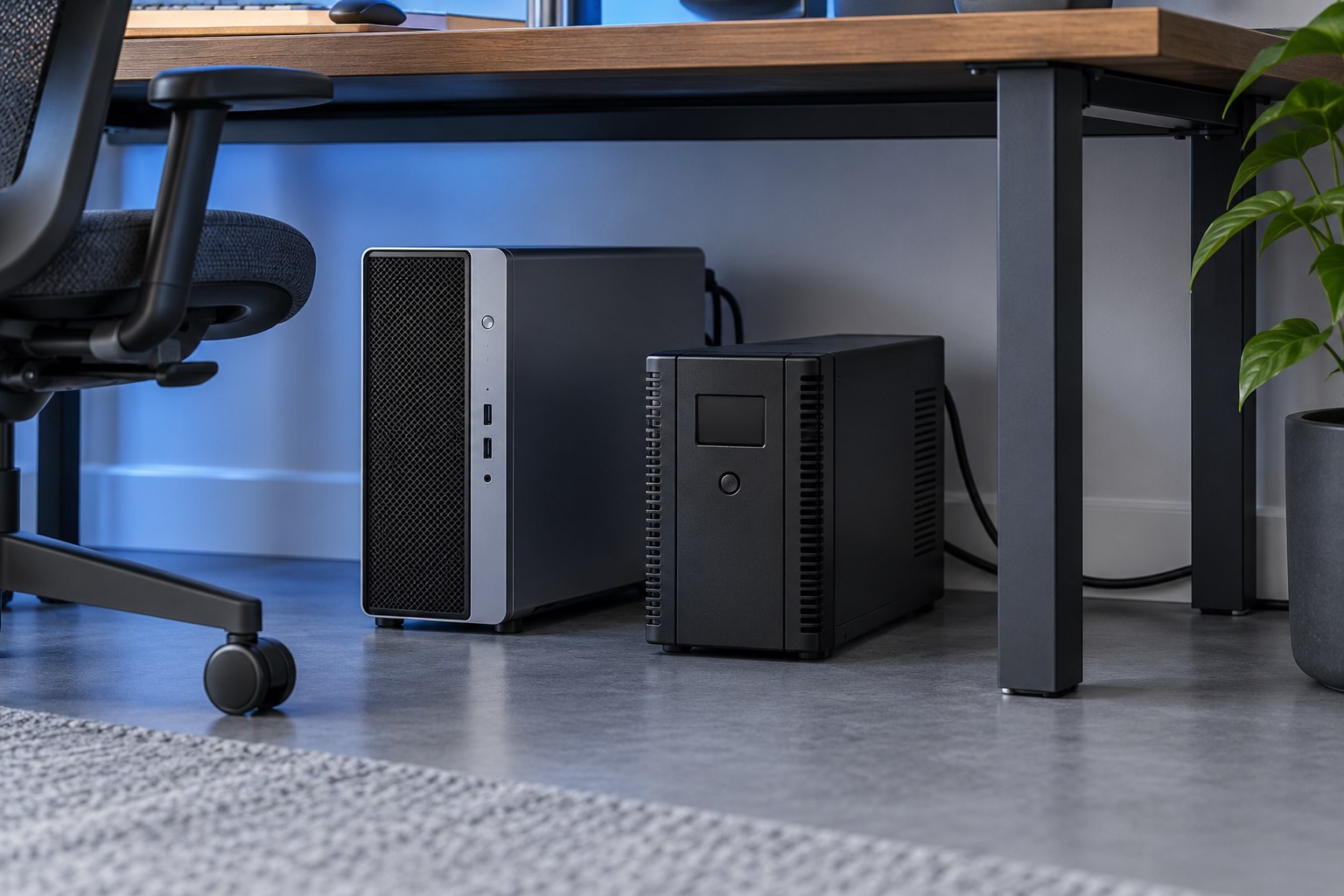
Some outlets on a UPS may provide battery backup while others offer surge protection only. Read the labels and put essential equipment on the correct group. Check connector types, plug spacing, and the physical dimensions of the unit. A suitable electrical rating is not useful if the large adapters cannot fit or the UPS has no appropriate place to stand within its installation guidance.
| Item | Reason to verify it |
|---|---|
| Watt and VA capacity | The unit must support the connected load within its ratings |
| Runtime at the expected load | The battery must cover the planned response time |
| Battery-backed outlet count | Essential devices need the correct outlets |
| Output compatibility | The UPS must suit the connected equipment and manufacturer requirements |
| USB or network management support | A computer may need a communication path for unattended shutdown |
| Replacement-battery availability | Maintenance affects the useful life and ongoing cost |
Plan unattended shutdown as part of the purchase
A UPS cannot save an unattended computer's work merely by keeping it alive until the battery empties. Supported management software or operating-system integration can initiate an orderly shutdown under configured conditions. Check compatibility with the computer and UPS before buying. APC's PowerChute guidance describes this role separately from the power connection itself. The communication cable and software configuration are part of the completed setup.
Choose a shutdown trigger that leaves a reserve rather than using the entire estimated runtime for normal work. Consider what happens after mains power returns and whether the computer should restart automatically. Follow the device and software instructions, especially where several systems depend on one UPS. A sensible plan is easier to test than a vague hope that the battery will last long enough.
Use the manufacturer's commissioning procedure
Follow the instructions for initial battery connection, charging, placement, and self-test. Do not improvise a test by interrupting power to active unsaved work. Use the supported test method after preparing the computer and essential devices. Confirm that management software sees the UPS and that the selected outlets behave as expected. Record the installation date and battery information so future maintenance has a clear starting point.
Sources & further detail
These references support the technical context. Examples and selection advice are editorial explanations; verify the documentation for your exact equipment and software.
A detail we should revisit? Send the guide URL and the relevant documentation to SmithKent5791@outlook.com.
Read the editorial policy