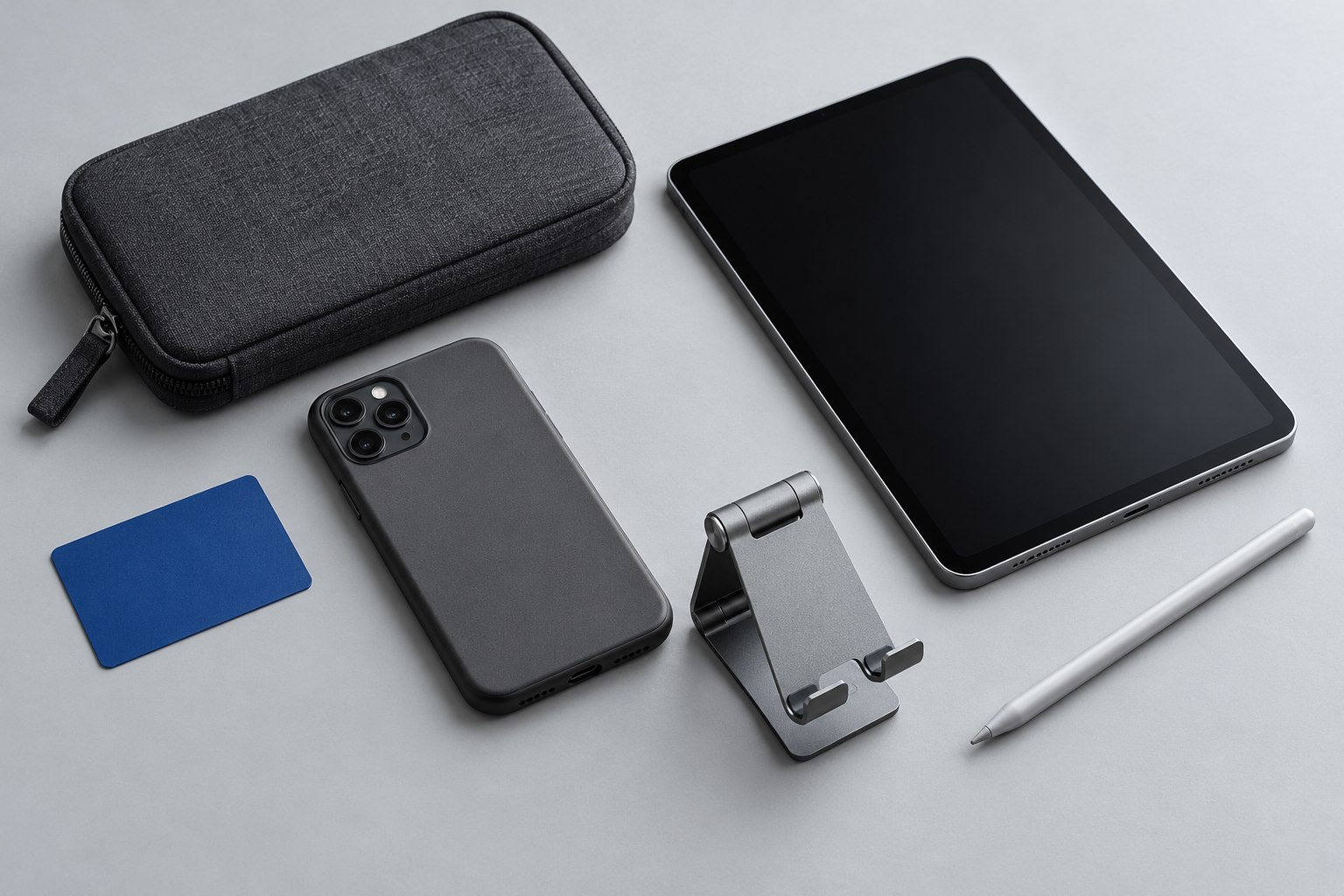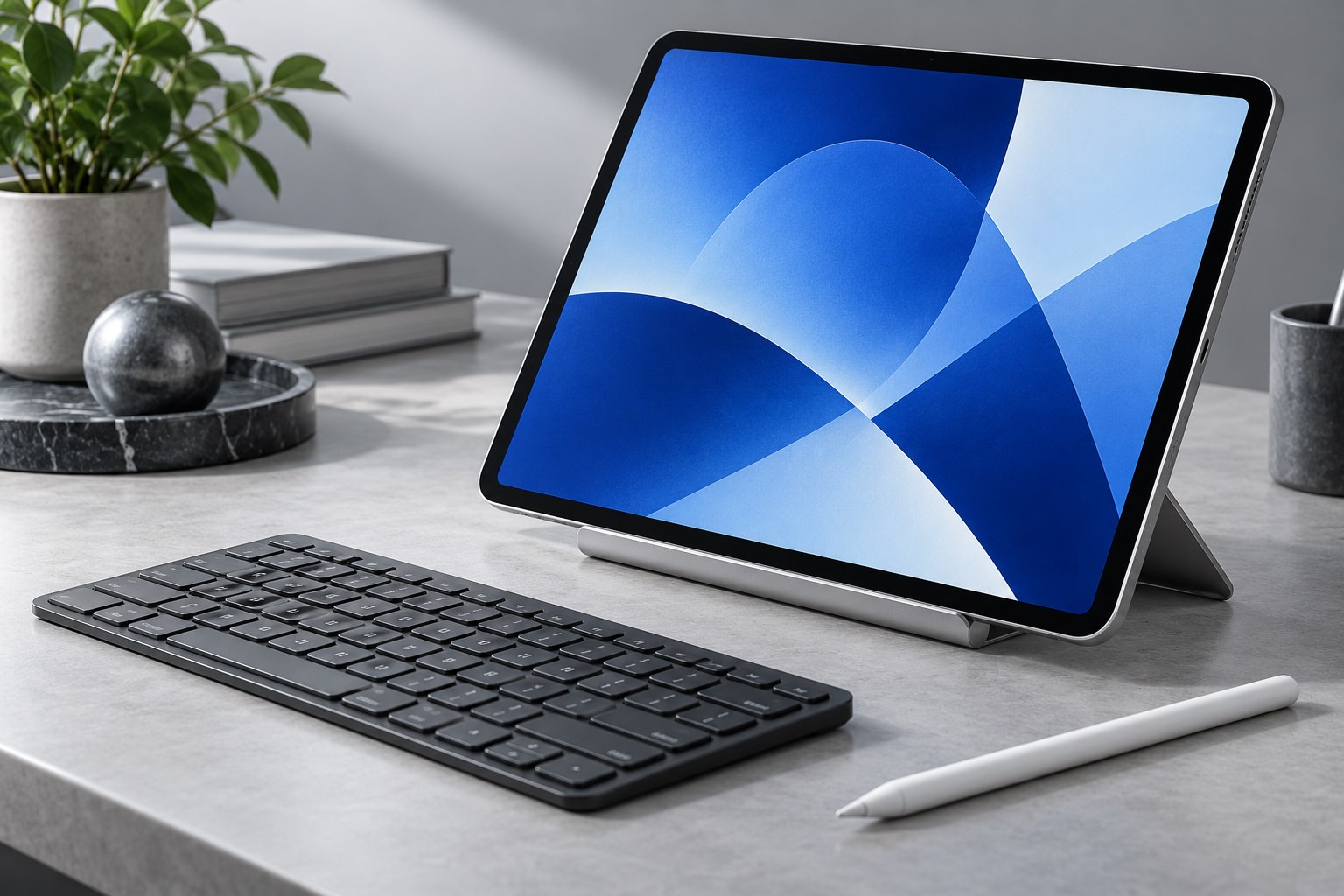
Decide which task deserves priority
A tablet used mainly for handwriting has different needs from one used to inspect photographs. A textured screen protector adds resistance as a pen moves across the surface. That can make small letters easier to control for someone who finds bare glass slippery. It can also change the way the display looks, so the purchase is a trade between two experiences.
Start with a real page of work. If your difficulty is that your wrist rests awkwardly, a lower writing angle may help more than a new screen surface. If the problem is a pen tip that skates across glass, texture is worth considering. Naming the problem prevents a vague promise of paper feel from standing in for a useful result.
Look at bright backgrounds
Texture scatters light. Paperlike's own technical discussion acknowledges that textured protectors can produce visible sparkle or haze, with the appearance influenced by the display beneath them. This is a reason to judge a sample with the screen content you use, rather than relying on a photograph taken with the display turned off.
Open a white document, a dark photograph, and small text. Look from your usual distance at normal brightness. Some people quickly stop noticing a fine texture; others find it distracting whenever they read. A protector intended for writing does not need to make every type of content look identical to bare glass, but it should not make an important task unpleasant.
Do not compensate for reduced clarity by immediately turning brightness to its maximum. That makes comparison less useful. First compare at a comfortable setting, then decide whether the writing improvement justifies the visual change.
Feel the pen without pressing harder
Write several lines using your normal pressure. If you are gripping the pen tightly to overcome the surface, the texture may be too aggressive for your style. Try long strokes as well as small letters, because a surface that steadies handwriting can feel slow during broad sketching gestures.
Inspect the pen tip periodically and follow its maker's replacement guidance. The surface should remain clean so that loose particles do not become part of the writing feel. Do not sand a tip or modify it to imitate another pen: a damaged contact point can make input less predictable.
For removable magnetic sheets, check that the attachment system fits the tablet and case. A removable sheet offers flexibility, but it also needs a clean flat place to live when it is off the screen. Folding it into a crowded pouch can introduce marks or bends.
Choose an installation you can maintain
Adhesive films require careful alignment around cameras and sensors. Dry-fit any included frame before peeling a liner. Keep the case nearby and verify that its edge will not lift the installed film. A perfect-looking sheet that starts peeling when the case returns is not a finished installation.
After fitting, test touch gestures and the pen across the entire display. A localized problem may indicate debris or poor contact. Follow the supplied instructions for correcting it instead of repeatedly lifting and pressing the same corner.
A tablet shared between drawing and film viewing may suit a removable surface. A dedicated note-taking tablet may justify a permanent textured layer. Keep the choice tied to the work: the aim is readable notes and comfortable control, with a display compromise you knowingly accept.
Sources & further detail
These references support the technical context. Examples and selection advice are editorial explanations; verify the documentation for your exact equipment and software.
A detail we should revisit? Send the guide URL and the relevant documentation to SmithKent5791@outlook.com.
Read the editorial policy