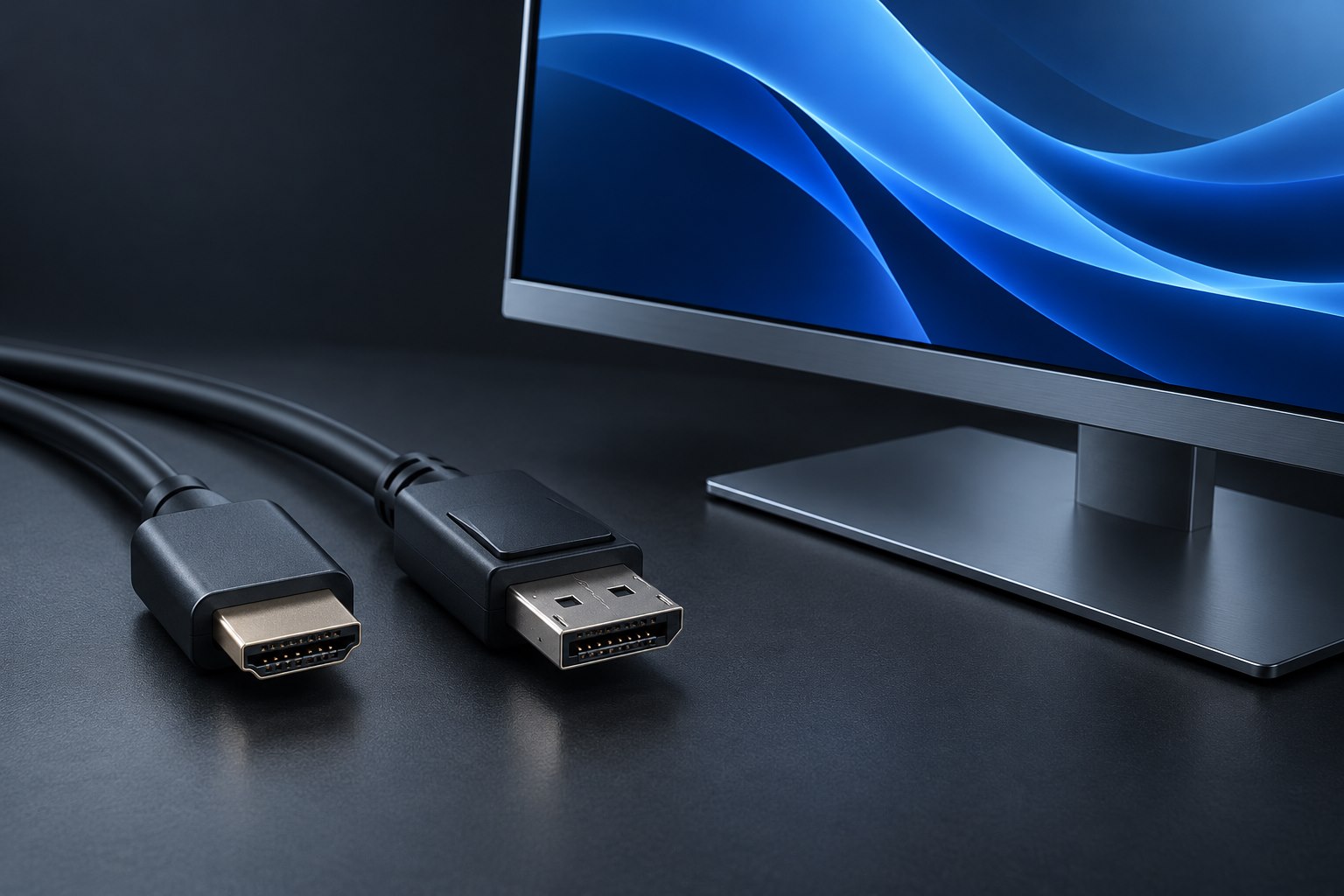
Name the source and the display
Write the source first when describing a video adapter. 'HDMI computer to DisplayPort monitor' is a different request from 'DisplayPort computer to HDMI monitor.' Marketplace titles sometimes rearrange those words for search visibility, so the title alone is unreliable. Find the connection diagram and check which end is labeled input and which is output. The signal direction matters even when both products have the same two connector shapes.
A common mistake occurs when reusing an office monitor with a console. The console offers HDMI output, while the monitor's spare socket is DisplayPort input. A cable previously used in the opposite direction may fit physically but cannot perform the required conversion. Start from the new source's capabilities rather than from the adapter already in the drawer.
Understand why the conversion may need power
An active converter translates between the signal formats. For HDMI sources feeding DisplayPort monitors, products commonly include electronics and may require supplemental USB power. The manufacturer should state where that power comes from and whether a cable or adapter is included. StarTech's documented HDMI-to-DisplayPort product is one example of a directional, USB-powered design; its specifics should not be generalized to every converter.
Do not confuse the USB power lead with a USB display connection. On many such adapters it powers the converter rather than carrying the picture. Route it to an approved source according to the instructions. If a screen intermittently blanks, inadequate converter power is one possibility to investigate, but the video mode and cable path also need checking. A power light alone does not prove that the conversion is compatible.
Verify the mode and the features you need
Confirm the supported resolution and refresh rate in the intended direction. A converter can have a lower limit than either endpoint, and optional features may not pass through. For a gaming source, verify variable refresh and any relevant color requirements explicitly; for office work, confirm the display's native resolution at a comfortable refresh rate. Avoid relying on a broad '4K compatible' statement without the accompanying conditions.
- Match the source output to the converter input, including connector type and signal direction.
- Check whether the converter accepts the source's actual output mode rather than merely a similar resolution.
- Identify any required USB power and include it in the complete cable route.
- Confirm audio handling if the monitor's speakers or headphone output are part of the setup.
Prefer a direct input when it solves the problem
Before buying a converter, inspect all inputs on the monitor and outputs on the computer. A direct compatible connection may be cheaper and easier to support. If the monitor's HDMI input is occupied, a suitable HDMI switch could be an alternative, depending on whether simultaneous display is required. The right choice depends on how the devices are used, not on preserving one particular spare socket.
When conversion is necessary, test it on the desk before routing cables behind furniture. Use a conservative supported mode first, then select the intended setting. If there is no picture, return to the input-output diagram and power instructions. Reversing an incompatible cable repeatedly will not change its function. Keep the converter's model information attached to your setup notes so a future replacement preserves direction as well as connector shape.
Sources & further detail
These references support the technical context. Examples and selection advice are editorial explanations; verify the documentation for your exact equipment and software.
A detail we should revisit? Send the guide URL and the relevant documentation to SmithKent5791@outlook.com.
Read the editorial policy