Do not build a setup around a color guess
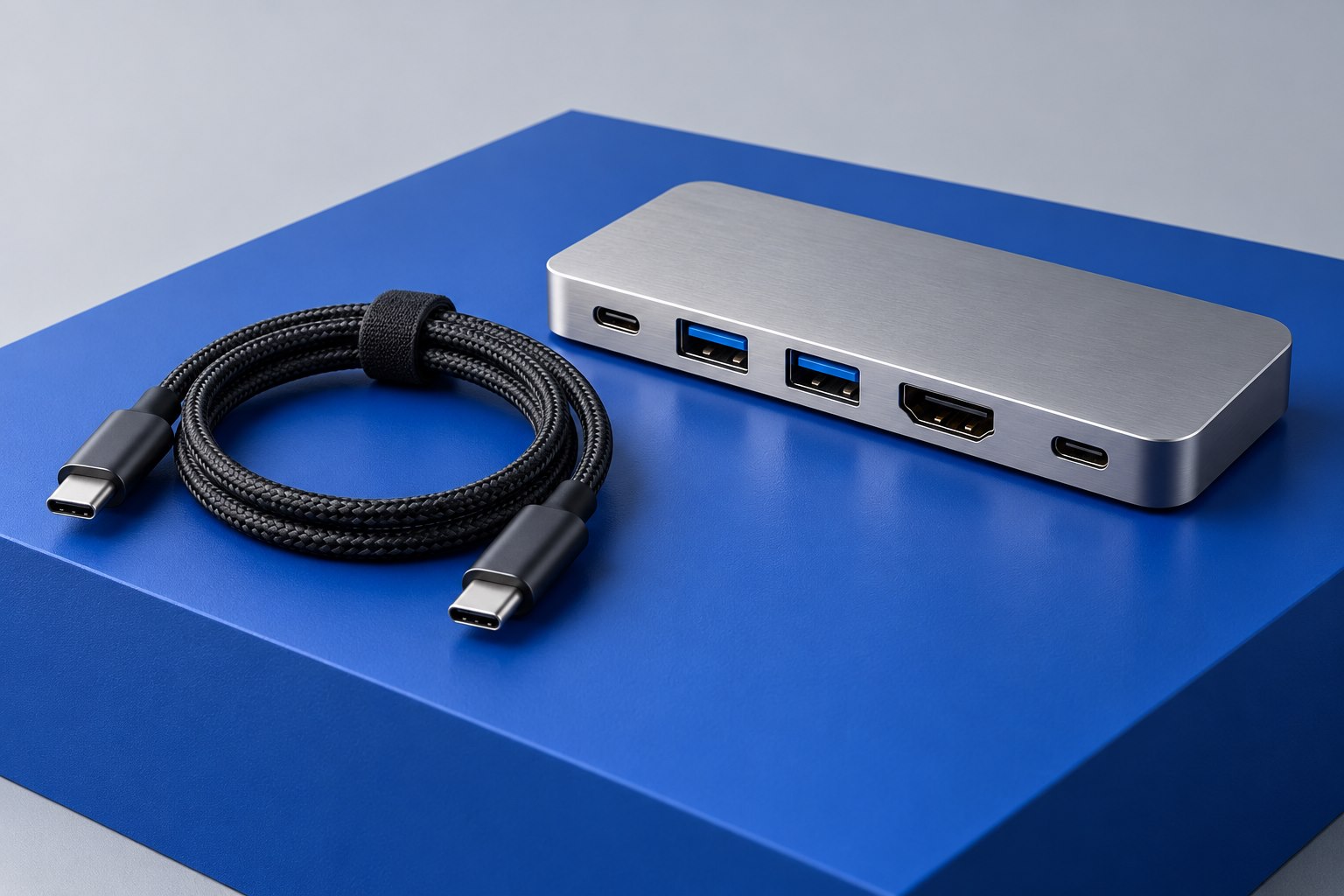
USB-A sockets can contain blue, black, red, or other colored inserts, and manufacturers may use color to distinguish particular features. The problem is treating every manufacturer's color choice as the same universal promise. A colored port might indicate a data generation, charging behavior, or a product-specific function. If you are choosing a port for a demanding device, consult the computer's diagram and legend rather than relying on color alone.
The same caution applies to USB-C sockets. Their shape gives little visible information about data speed, video capability, or incoming charging support. A nearby symbol can help, but it still needs interpretation in the manufacturer's documentation. A port map saved with the computer's model information is more reliable than memorizing a general chart from an unrelated product.
Look for a stated performance rate
USB-IF's consumer-facing performance guidance uses explicit data rates such as USB 5Gbps and USB 10Gbps to make capabilities clearer. These figures describe the connection's signaling class rather than a guaranteed file-copy result. Actual transfers also depend on the device, workload, software, and any shared hub. Still, a stated rate is a better starting point than a vague phrase such as high speed in a seller's description.
When comparing two ports, ask whether the peripheral benefits from the difference. A basic keyboard does not need the fastest available connection. A fast external device might. Keeping low-demand accessories on ordinary ports can leave a clearly documented faster port available for the equipment that uses it. This is especially helpful on a laptop with only one high-capability USB-C connection.
Separate charging symbols from data capability
A charging symbol may indicate that a port can supply power while the computer sleeps or is shut down, subject to settings and model behavior. It does not necessarily identify the fastest data path. Likewise, a port that accepts power to charge the laptop has a different role from one that charges a phone. The same USB-C connector can participate in either role when the devices support it, but the manual should describe the intended behavior.
Suppose you plug a phone into a marked charging port and it fills quickly. That result establishes a charging behavior for that combination; it says little about how quickly a large video folder will transfer. If data speed matters, check the port, phone, and cable specifications separately. This avoids replacing a perfectly adequate charging accessory to solve a data limit elsewhere.
Make your own labels useful
After identifying the ports, create labels based on jobs rather than obscure abbreviations. 'Fast drive,' 'monitor,' and 'power input' can be useful on a shared desk. Use removable labels placed near the connector, leaving vents and plugs unobstructed. Keep the underlying specification in a short note so a future device change does not turn a convenient label into a false assumption.
Revisit the map when adding a hub or dock, because its downstream ports may differ from those on the computer. A USB-C socket on the dock might provide ordinary data only, while another provides a downstream Thunderbolt connection. Labeling the actual roles can prevent a working display cable from being moved into a visually identical but unsuitable port during tidying. Clear local documentation is more durable than relying on the color of plastic.
Sources & further detail
These references support the technical context. Examples and selection advice are editorial explanations; verify the documentation for your exact equipment and software.
A detail we should revisit? Send the guide URL and the relevant documentation to SmithKent5791@outlook.com.
Read the editorial policy