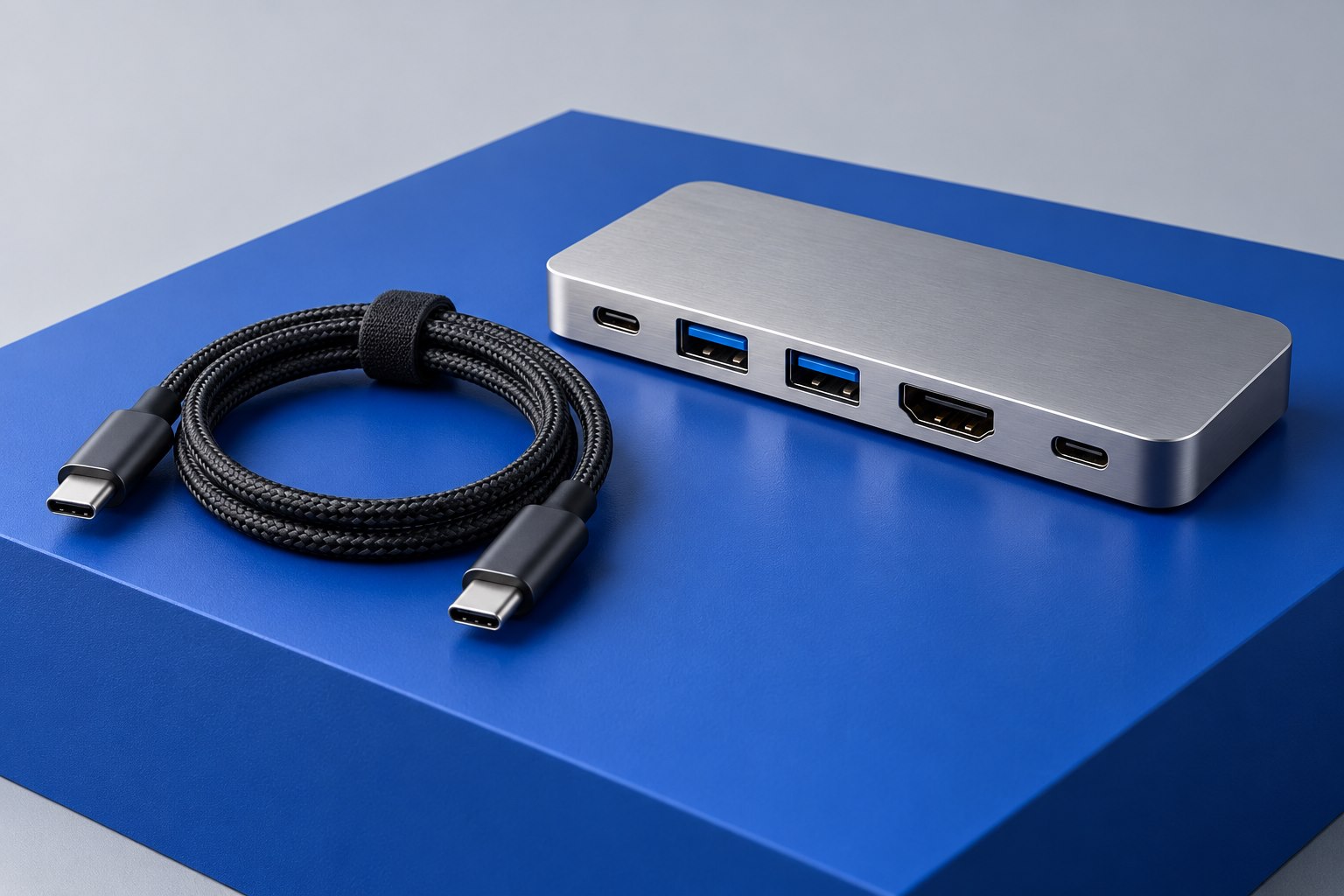
Distinguish connection from full performance
A newer accessory may work on an older or less capable port while operating with reduced functions or speed. That can be useful, but the fallback behavior must be documented for the product. The fact that USB-C plugs fit at both ends does not guarantee a common data protocol, display path, or power arrangement. Start with the accessory's supported-host table and the computer's exact port specification.
Intel describes cross-compatibility between Thunderbolt and USB, including negotiation at the capabilities available in a particular combination. The practical consequence is that a connection can be successful without delivering the headline performance of the accessory. Treat 'works' and 'works at the intended mode' as separate acceptance criteria, especially when a dock combines displays, charging, and storage.
Read fallback by function
A dock could preserve USB data while offering fewer displays on a different host. A storage device might connect through a compatible lower-speed mode. A particular Thunderbolt-only accessory might require a Thunderbolt-capable path rather than ordinary USB data. These outcomes depend on the design. Avoid generalizing from one product to another simply because they share an enclosure style or connector.
Make a small function table for the host you own today and the one you expect to use later. List display count and modes, data connection, and host charging separately. If the manufacturer leaves a cell unclear, ask before buying. This is more reliable than assuming a future-oriented purchase automatically works well with the current computer.
Check a shared accessory against two hosts
Suppose a dock is intended for a new Thunderbolt laptop and an older USB-C notebook. On the newer machine, the manufacturer may document two independent screens and fast peripheral connections. On the older machine, the supported fallback could be one screen with ordinary USB data. That can still be a useful purchase if the second machine is used occasionally and one external screen is sufficient. It is a poor fit if both users require the same two-screen workspace every day.
The distinction should be written into the purchase decision before the dock arrives. A seller saying that both computers are compatible may be technically describing successful connection while leaving the different outcomes unexplained. Ask a precise question: which independent displays, at which modes, through which outputs, and with how much host charging? The same approach applies to a fast external accessory that offers a slower USB fallback. The fallback must exist in the product design; it should never be inferred from the plug alone.
Remember that the cable participates
The host and accessory can share a capability that the selected cable does not support. A familiar charging cable may allow power but omit the data or display function you need. An active cable can also have product-specific compatibility characteristics. Use the supplied or recommended cable for the first connection and check the specifications before substituting a longer one.
| Observed result | Possible capability question |
|---|---|
| Accessory powers on but is not detected | Do host, cable, and accessory share the required data protocol? |
| Data works more slowly than expected | What fallback rate is documented for this host and cable? |
| Only one monitor works | What display configuration is supported on this host type? |
| Laptop charges but accessories fail | Is the selected cable or port providing only part of the required function? |
Decide whether the reduced mode is acceptable
A reduced-speed mode can be perfectly adequate for occasional backups or office peripherals. It may be a poor fit for sustained large transfers or a demanding display arrangement. Compare the fallback result with the work you actually do rather than treating any reduction as a failure. A well-documented compromise can be sensible; an undocumented one is harder to depend on.
Test the current host during the return period, including its normal workload and wake behavior. Keep the working cable identified and save the compatibility table. If the accessory does not meet the advertised fallback behavior, collect the exact host, cable, and firmware details for support. Buying a faster cable at random is unlikely to fix a limitation that belongs to the host or to the accessory's supported modes.
When borrowing a computer, bring the documented cable as part of the accessory kit. A shared office cable can be the hidden difference between an arrangement that worked yesterday and one that fails today. Keeping the connection components together makes the fallback result easier to reproduce.
An upgrade plan can also be staged. If the current computer’s fallback is adequate today, keep the accessory and supplied cable together for the future host. If the present limitation already blocks the work, postponing the computer upgrade does not make that limitation disappear. Compare the total cost of the accessory, any required adapters, and the expected host change against a simpler product that meets today’s requirements. Compatibility is most useful when it is described as a concrete result for each machine.
Sources & further detail
- Intel: Thunderbolt 4 and USB-C cross-compatibility
- CalDigit: USB and Thunderbolt interface distinctions
These references support the technical context. Examples and selection advice are editorial explanations; verify the documentation for your exact equipment and software.
A detail we should revisit? Send the guide URL and the relevant documentation to SmithKent5791@outlook.com.
Read the editorial policy